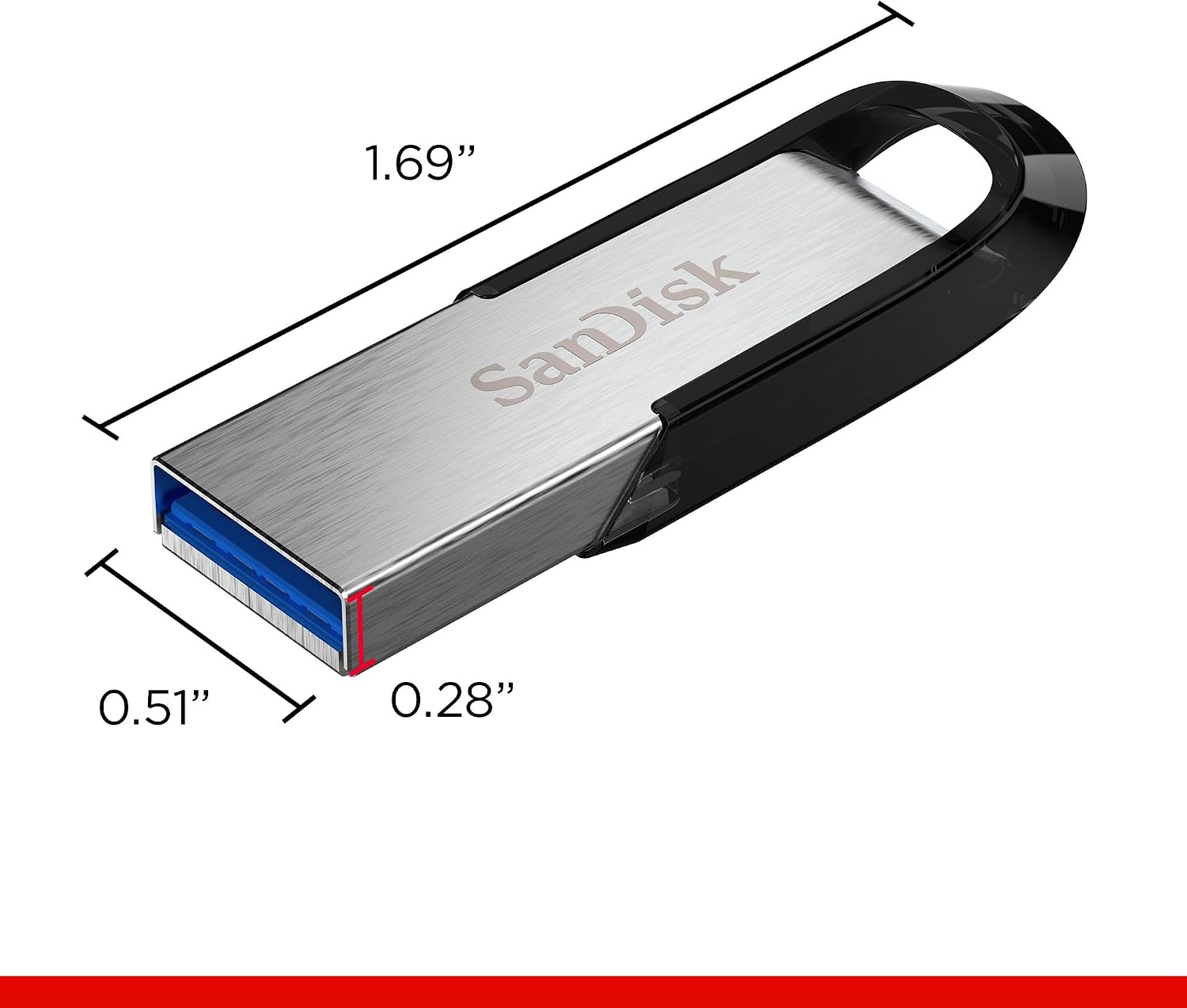
A USB flash drive — sometimes called a thumb drive, stick drive, or pen drive — is a small, portable storage device you plug into a USB port to move or store files. They’ve been around since the early 2000s and most people own at least one rattling around in a drawer. Here’s the thing: they vary enormously. A $7 drive you grab at a pharmacy checkout and a $55 drive from a reputable brand might look identical, but one transfers a 10 GB folder in 40 seconds and the other takes twelve minutes. If you’re using flash drives to hand off client files, maintain an emergency copy of critical documents, or serve as the “portable” leg of a 3-2-1 backup plan (three copies, on two types of media, with one offsite), picking the wrong tier is a real cost — in time, in frustration, and occasionally in lost data. This guide will help you cut through the noise: what the speed tiers actually mean, how much capacity you probably need, and — critically — when a flash drive is genuinely sufficient protection versus when it’s giving you false confidence.
The Speed Tiers: What USB 2.0, 3.x, and 3.2 Gen 2 Actually Deliver
USB version numbers are stamped on packaging and spec sheets, but they’re ceilings, not guarantees. Here’s what you’ll realistically encounter in 2026.
USB 2.0 — theoretical max of 480 Mbps, real-world write speeds typically land between 4–8 MB/s. These are the no-name white-label drives. Tom’s Hardware’s coverage of USB flash drive architectures consistently notes that USB 2.0 drives often pair the slower standard with the cheapest NAND flash (the memory chips inside), compounding the bottleneck. For transferring a 500 MB document set, fine. For anything measured in gigabytes, plan on walking away.
USB 3.0 / 3.1 Gen 1 — theoretical max 5 Gbps, real-world writes typically 30–80 MB/s depending on the NAND quality inside. This is where the mainstream “decent” drives live. PCMag’s flash drive roundups consistently place well-regarded drives in the SanDisk Ultra and Kingston DataTraveler families here, with sequential reads pushing 130 MB/s on a good day but writes lagging behind.
USB 3.1 Gen 2 / 3.2 Gen 2 — theoretical 10 Gbps, real-world writes on quality drives hitting 200–400 MB/s. TechRadar’s USB standards explainer makes the point clearly: you only see these speeds if both the drive and the host port support Gen 2. Plug a Gen 2 drive into a Gen 1 port and you’re capped at Gen 1 rates. Worth confirming your laptop or hub spec before paying the premium.
USB4 / Thunderbolt-class — some high-end compact SSDs (not traditional flash drives — these use SSD internals in a thumb-drive form factor) are beginning to arrive at this tier, capable of 1,000+ MB/s. These overlap with the portable SSD category. If you’re considering this tier, you’re probably past the flash drive conversation entirely.
By the Numbers
| USB Standard | Theoretical Max | Realistic Write Speed | Practical Use Case |
|---|---|---|---|
| USB 2.0 | 480 Mbps | 4–8 MB/s | Documents, small photos |
| USB 3.0 / 3.1 Gen 1 | 5 Gbps | 30–80 MB/s | Photo sets, moderate video |
| USB 3.2 Gen 2 | 10 Gbps | 150–400 MB/s | RAW libraries, video project files |
| USB4 / compact SSD | 40 Gbps | 800–1,200 MB/s | High-res video, daily production work |
NAND Flash Type: The Inside Factor the Box Rarely Advertises
Speed tier is the interface ceiling. NAND flash type is what you’re actually writing to. Understanding this is the difference between a drive that survives two years of daily use and one that starts throwing errors at 18 months.
TLC (Triple-Level Cell) — stores three bits per cell. Inexpensive, high capacity density, write endurance in the range of 300–1,000 program/erase cycles per cell. Most consumer flash drives use TLC. That endurance sounds like a lot — and for light use, it is — but Tom’s Hardware’s NAND architecture coverage explains that TLC degrades faster under sustained large writes, because the drive has to cycle cells repeatedly to fill them. Fine for a document archive you write once and read occasionally. Risky as the only copy of an active project you’re copying to every night.
MLC (Multi-Level Cell) — two bits per cell, 3,000–10,000 P/E cycles. More durable, more expensive, increasingly rare in consumer flash drives but still present in drives marketed toward industrial or “high endurance” users. If you’re doing daily backup writes, MLC is materially more reliable.
SLC (Single-Level Cell) — one bit per cell, 50,000–100,000 P/E cycles. Exceptional endurance, low density, expensive. Mostly enterprise and embedded use cases. You won’t find SLC in retail flash drives at consumer prices.
Backblaze’s ongoing drive reliability data — while primarily focused on spinning-disk HDDs — includes supplementary analysis of flash failure modes, and the consistent takeaway is that write endurance and controller quality matter more than brand recognition alone. A “premium” brand label on a drive built with discount TLC and a budget controller is still a discount drive.
Counterfeits are a real risk. Drives sold through third-party Amazon Marketplace sellers and gray-market channels are frequently counterflashed — meaning the packaging says 256 GB but the actual chip inside is 32 GB, with the controller tricked to report false capacity. Files appear to copy successfully, then corrupt silently when the real capacity fills. Buy flash drives only from authorized resellers: the manufacturer’s direct store, B&H Photo, Best Buy, Adorama, Newegg (sold directly), or Amazon when “sold by Amazon” — not third-party marketplace sellers. Run H2testw (Windows) or F3 (macOS/Linux) on any drive you’re not certain about to verify actual capacity before trusting it with real data.
Capacity: How Much Do You Actually Need?
Flash drive capacities in 2026 span 8 GB to 2 TB, and the price-per-gigabyte math has compressed significantly at the middle tier.
For document-centric users — contracts, invoices, client briefs, spreadsheets — a 64 GB drive is overkill in terms of raw space but the right size because it guarantees you never have to manage what’s on the drive. Price per terabyte at 64 GB is roughly $12–18/TB depending on the brand tier, which is fine.
For photographers working in JPEG or compressed RAW, 256–512 GB starts to make sense. A single shoot producing 800 images at 25 MB per file (typical for a mirrorless APS-C body) is roughly 20 GB. Ten shoots fills a 256 GB drive. If you’re maintaining a rotating archive of recent client work on a flash drive, 256 GB is the practical floor.
For video editors, flash drives are almost never the right answer for primary storage or primary backup — the read/write endurance and sequential write speeds of even good flash drives make them uncompetitive with portable SSDs at this workload. Tom’s Guide’s portable storage guides consistently steer video professionals toward portable SSDs (Samsung T9 Pro, SanDisk Extreme Pro SSD tier) rather than flash drives for anything above 1080p project work.
Where flash drives make sense for practitioners:
- Emergency “go bag” copy of critical system configs, passwords (encrypted), and essential client files
- Sneakernet transfers between machines that don’t share a network
- Installer drives and OS recovery media
- Short-term staging: you’re handing a client a deliverable and they need a physical copy
- Secondary redundancy in a 3-2-1 architecture — not the primary local backup, but a supplemental copy kept offsite at a relative’s home or a safe deposit box
When Flash Drives Are Enough — and When They’re a False Safety Net
This is the decision frame that matters for practitioners weighing backup architecture.
Flash drives are sufficient when:
- The data is replaceable or has another copy elsewhere that you genuinely maintain
- You’re doing short-term staging, not long-term archiving
- The file set is small (under 100 GB) and you’re writing infrequently
- You’ve confirmed the drive’s actual capacity with a verification tool
- You’ve bought from an authorized reseller and know the NAND tier you’re getting
Flash drives are not sufficient as a sole backup when:
- The data is irreplaceable (RAW files, completed project deliverables, client archives)
- You’re writing to the same drive daily — TLC endurance degrades under sustained use
- The drive is more than 2–3 years old and has seen regular use
- You’ve never done a restore test — plugged the drive into a different machine, opened files, confirmed they’re intact
That last point is the one most practitioners skip. PCMag’s flash drive coverage notes that drives can silently degrade — files appear to be present in directory listings but are partially corrupted on-disk — especially in TLC drives that have accumulated write cycles. The test is simple: pick three random files from the drive, copy them to a different machine, open them fully. Do this quarterly if the drive is in active use. If you’ve never done this, do it today before you trust the drive with anything critical.
The if/then decision rule:
- If your flash drive holds the only copy of anything irreplaceable → it’s not a backup, it’s a single point of failure. Add a second copy to cloud storage (iDrive, Backblaze Personal Backup) or a second physical drive immediately.
- If your flash drive is one of three copies (local drive, NAS or second external, cloud) → it’s functioning as the portable/offsite leg of a real 3-2-1 plan, which is a legitimate and appropriate role.
- If you bought the drive from a marketplace seller and have never verified capacity → run verification before you trust it. A counterfeit drive is not a backup device.
- If you’re transferring files regularly and speed is causing real friction → move up one tier. The cost difference between a USB 3.0 mainstream drive and a USB 3.2 Gen 2 drive is $20–35. The time you’ll recover on a busy transfer week pays for that in the first month.
- If you’re protecting multi-gigabyte video or RAW libraries → the flash drive category isn’t the right tool. Budget toward a portable SSD or a NAS-based local backup with cloud tiering as the second copy.
What to Look For at Each Budget Level
Under $20: Stick to known-brand USB 3.0 drives (Kingston DataTraveler Exodia, SanDisk Ultra USB 3.0) at 64–128 GB. Buy from authorized retail, not marketplace sellers. Good for documents and recovery media. Not suitable as a primary backup for large file sets.
$20–$45: This range opens up higher-capacity USB 3.0 drives (256–512 GB) and entry-level USB 3.2 Gen 1 options. PCMag’s roundup coverage of this tier consistently highlights the SanDisk Ultra Flair and Kingston DataTraveler Max as reliable performers with documented speed consistency across reviews.
$45–$80: USB 3.2 Gen 2 territory. Drives in the Samsung BAR Plus and Kingston DataTraveler Max families at 256–512 GB. If you’re doing regular large transfers, this tier reduces friction measurably.
$80+: You’re overlapping with the compact portable SSD category. At this price point, aggregate reviewer consensus — as seen in PCMag and Tom’s Hardware coverage — favors purpose-built portable SSDs over premium flash drives for workload-intensive use. The durability, endurance, and sustained write speeds are categorically better.
Flash drives occupy a legitimate, narrow, and well-defined role in a layered data protection strategy. Know that role, verify what you’re buying, and test your restores. A $12 drive from a trusted reseller that you’ve verified and tested is worth more than a $50 drive from an unknown marketplace seller that you’ve assumed is fine.