You’ve got a dead laptop in a drawer somewhere — screen cracked, battery swollen, motherboard fried. The machine is junk, but the drive inside it probably isn’t. A drive enclosure (a small plastic or aluminum shell that costs about $10–$20 and turns a bare internal drive into a portable external one) is all it takes to pull that storage out and plug it directly into your current computer via USB. No soldering, no special software, no IT degree required. If the drive is healthy, your files are still on it. This guide walks you through how to assess what you’ve got, which enclosure to choose, what the real durability tradeoffs look like across the most-reviewed options, and whether a rescued laptop drive can serve as a legitimate part of your ongoing backup strategy — or just a one-time rescue tool.
What You’re Actually Working With (And What Can Go Wrong)
Most laptops made between roughly 2008 and 2022 use one of two drive types: a 2.5-inch SATA hard disk drive (HDD — a spinning magnetic disk) or a 2.5-inch SATA solid-state drive (SSD — no moving parts, faster, more durable). Nearly every 2.5-inch enclosure on the market handles both. The connector at the bottom of both drive types is identical — a SATA data + power combo — so you don’t need to know whether you have an HDD or SSD before buying an enclosure. You just need the right physical size.
The one exception worth knowing: Some older iMac drives and a handful of laptop models use a 9.5mm-thick drive instead of the standard 7mm. Reviewers who shucked iMac drives specifically flag this — a 9.5mm drive won’t seat flush in an enclosure rated only for 7mm, and you’ll end up with a loose connection or a drive that doesn’t mount at all. Check your drive’s thickness (it’s usually printed on the label) before ordering.
What you should NOT expect this to work with: Newer laptops — think post-2015 MacBooks, most thin ultrabooks, and anything with “NVMe” in the spec sheet — often use M.2 form-factor drives, which are a completely different shape and connector. A standard 2.5-inch enclosure will not accept those. M.2 enclosures exist and work well, but that’s a separate purchase decision.
Check Drive Health Before You Invest Time
Before you spend even $10 on an enclosure, know this: a drive that failed catastrophically (head crash, firmware corruption) will not be rescued by an enclosure alone. The enclosure just provides power and a USB bridge — it doesn’t repair damaged storage.
Tom’s Hardware’s “How to Check Hard Drive Health” guide recommends running a S.M.A.R.T. diagnostic (Self-Monitoring, Analysis, and Reporting Technology — the health-reporting system built into virtually every SATA drive) as the first step. If you can boot the donor laptop at all — even partially — free tools like CrystalDiskInfo (Windows) or Disk Utility (macOS) will display S.M.A.R.T. status in about 30 seconds. A “Caution” or “Bad” status means reallocated sectors (spots on the drive the firmware has flagged as unreliable) are accumulating, and the drive is declining. A “Good” status means the drive’s internal diagnostics see no current hardware problem.
If the laptop won’t boot, you’re working blind until the drive is in the enclosure and connected to a healthy machine — at which point you can run the same tools immediately.
By the numbers:
| S.M.A.R.T. Status | Interpretation | Action |
|---|---|---|
| Good | No flagged sectors; drive is operating normally | Safe to use |
| Caution | Reallocated sectors present; drive is degrading | Copy files immediately; don’t rely on it long-term |
| Bad / Unknown | Hardware failure likely | Professional recovery may be needed |
Per Backblaze’s published Hard Drive Stats (Q1 2026 data), annualized failure rates for 2.5-inch consumer HDDs increase sharply after four to five years of use. If the drive in your dead laptop is more than five years old, treat it as a time-limited rescue device, not permanent storage.
Choosing an Enclosure: Where the $10 Price Point Has Real Tradeoffs
The market for 2.5-inch SATA enclosures is crowded, and most options cluster around the same price point. Across aggregated reviews, three names come up most frequently: the SABRENT EC-UASP, the UGREEN 2.5-inch enclosure, and the ORICO clear enclosure. Each has a distinct profile worth understanding.
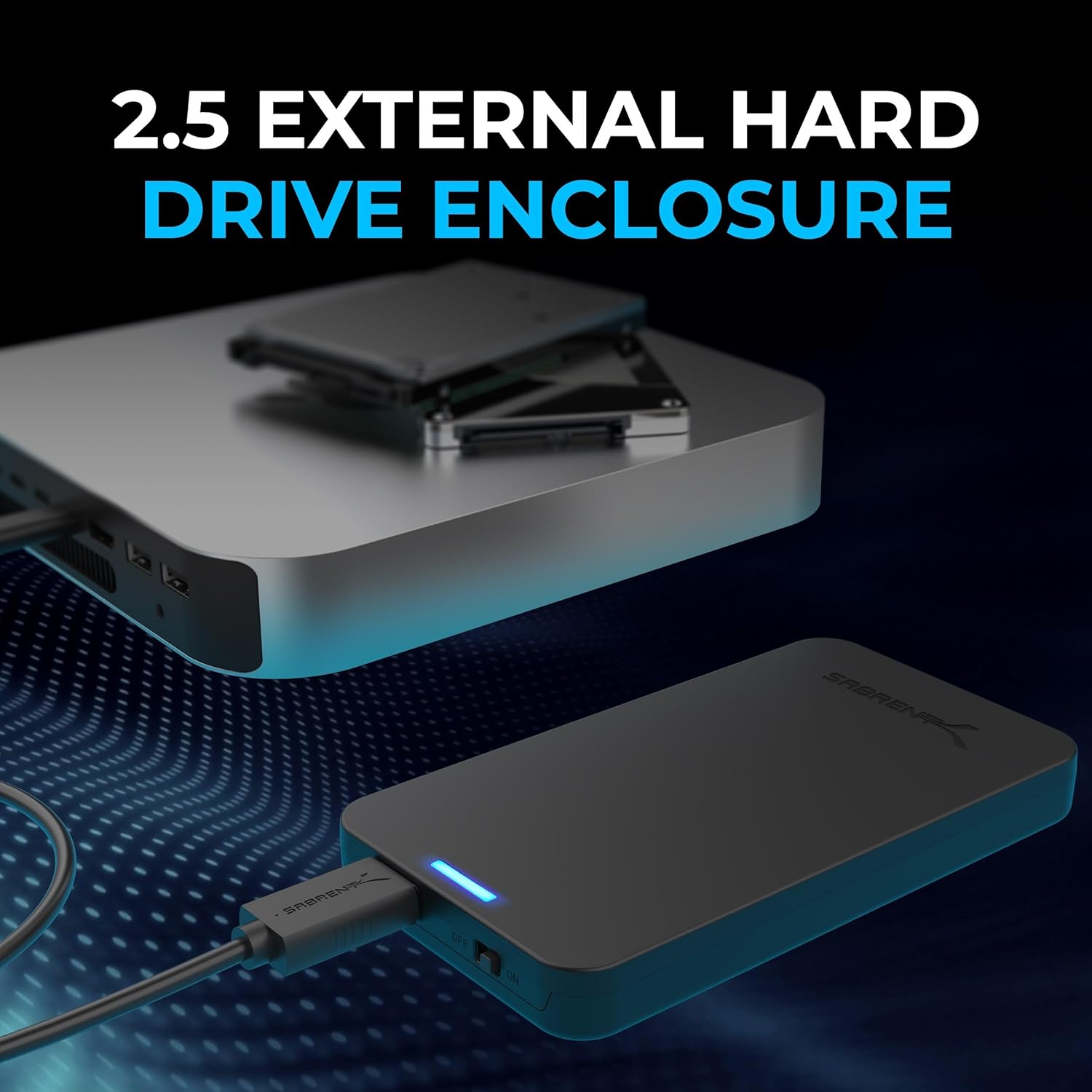
SABRENT EC-UASP — The detail reviewers keep returning to is the hardware power switch. This is a physical toggle on the enclosure itself that cuts power to the drive without requiring you to eject it in software first. An audio/video professional in one widely-cited review specifically singles this out as a meaningful workflow feature — when you’re managing multiple drives across a session, being able to hard-cut power cleanly matters. PCMag’s overview of external drive enclosures notes that most budget enclosures omit this entirely. The SABRENT includes it. For anyone treating a rescued drive as part of a recurring workflow (not just a one-time recovery), the power switch is a genuine differentiator.
UGREEN 2.5-inch enclosure — Owners report strong build quality for the price point, and the USB compatibility story is worth highlighting for Mac users specifically. MacBook Pro models from the 2012–2015 era have USB 2.0 ports. The UGREEN’s USB 3.0 connector is backward-compatible — it will negotiate down to USB 2.0 speeds automatically, so you don’t need an adapter and won’t get a “device not recognized” error. Multiple MacBook Pro owners flag this explicitly in reviews as the reason they chose UGREEN over alternatives. Speeds will be slower (USB 2.0 tops out at around 480 Mbps theoretical vs. USB 3.0’s 5 Gbps), but for file recovery from a single old drive, that’s rarely the bottleneck.
ORICO clear enclosure — This one requires an honest flag. Several reviewers initially gave it strong marks for the transparent housing (useful for visually confirming the drive is seated and spinning). However, at least one notable review, originally posted as five stars, was subsequently revised to one star after the USB connection became intermittently unstable several months into use — a classic symptom of a degrading internal USB bridge chip or connector solder joint. Intermittent connections are particularly dangerous in a backup context because they can corrupt a drive mid-write without triggering an obvious error. StorageReview’s 2.5-inch compatibility matrix notes that bridge chip quality is the primary differentiator in budget enclosure longevity, and it’s the one thing you can’t assess from a spec sheet. The ORICO’s durability signal is worth weighting seriously if you plan to use the drive beyond a one-time file recovery.
The Real Question: Recovery Tool or Permanent Backup Drive?
This is where practitioners need to make an explicit decision, not just default to “I’ll figure it out later.”
Ars Technica’s “The Right Way to Do a 3-2-1 Backup” explainer (a framework where you maintain three copies of data, on two different media types, with one stored off-site) makes a point that applies directly here: a drive’s role in your architecture should be determined by its reliability profile, not its availability.
A rescued laptop drive that checks out as S.M.A.R.T.-healthy, is under four years old, and shows no bad sectors is a legitimate candidate for secondary backup storage — not your primary, not your only copy, but a real second local copy in a 3-2-1 stack. Pair it with a cloud tier like Backblaze B2 or iDrive, and a rescued drive becomes a low-cost local restore point that makes cloud restores (which carry egress costs — the fees cloud providers charge you to download your own data back out) far less necessary for day-to-day recoveries.
A drive that’s five-plus years old, shows Caution-level S.M.A.R.T. data, or came from a laptop that failed due to an impact (dropped machines often have drive damage that doesn’t show up immediately in S.M.A.R.T.) should be treated as a temporary recovery vehicle only. Copy your files off it, verify them, and do not rely on it.
The decision rule: If the drive is healthy and under four years old → slot it as a local second copy in a 3-2-1 architecture, with tested restores every 90 days. If the drive is degraded or old → use it to rescue files, then retire it.
What to Do When the Enclosure Connects But the Drive Isn’t Recognized
This happens, and it’s more often a software or formatting issue than a hardware failure. Work through this sequence before concluding the drive is dead:
- Try a different USB port and a different cable. Budget enclosures sometimes ship with marginal cables. A cable swap resolves this more often than you’d expect.
- Check Disk Management (Windows) or Disk Utility (macOS). A drive can be physically connected and electrically live but show no desktop icon if it’s formatted in an incompatible file system (NTFS drives don’t mount natively on macOS without third-party software; HFS+ drives won’t mount natively on Windows) or if the partition table is corrupted.
- Run S.M.A.R.T. diagnostics immediately. If the drive appears in your OS’s disk utility but won’t mount, pull the health status before doing anything else.
- If the drive spins up but makes clicking or grinding sounds, stop. This is the sound of a head crash — a mechanical failure that enclosures cannot fix and that repeated power cycles will make worse. At this point, professional data recovery (services like DriveSavers or Ontrack) is the path forward, and costs typically run $300–$1,500+ depending on severity.
Frequently Asked Questions
Will a 2.5-inch enclosure work with both hard drives and SSDs from old laptops? Yes — provided both are 2.5-inch SATA drives, which covers the vast majority of laptops made before 2018. The SATA connector is identical across HDDs and SSDs in this form factor, so the enclosure doesn’t need to “know” which type it’s holding.
How do I know if my old laptop’s drive is still healthy before putting it in an enclosure? If the laptop boots at all, run CrystalDiskInfo (Windows) or macOS’s Disk Utility to pull S.M.A.R.T. status. If it won’t boot, connect the drive via enclosure first, then run diagnostics immediately from your working machine before doing anything else. Tom’s Hardware’s “How to Check Hard Drive Health” guide covers both paths in detail.
Does the UGREEN enclosure work with older MacBook Pro USB 2.0 ports? Yes. The USB 3.0 connector is backward-compatible with USB 2.0 ports — it negotiates the lower speed automatically. Owners of 2012–2015 MacBook Pro models specifically confirm this works without adapters or drivers.
Why does a hardware power switch matter, and which enclosures have one? A hardware power switch lets you cut power to the drive physically, independent of the operating system. This matters for workflow efficiency (no waiting for software eject cycles) and for drive longevity (clean power-offs reduce the risk of write-cache corruption). Across the enclosures reviewed here, the SABRENT EC-UASP is the one reviewers specifically call out for including it.
Can I use a rescued laptop drive as a permanent backup drive, or just for recovery? It depends on drive health and age. A S.M.A.R.T.-healthy drive under four years old can function as a legitimate local second copy in a 3-2-1 backup architecture — but test restores every 90 days, and never make it your only copy. An older or degraded drive should be used only long enough to recover and verify your files, then retired.
What should I do if the enclosure connects but the drive isn’t recognized? Start with the cheap fixes: swap the USB cable, try a different port, and check Disk Management or Disk Utility for a drive that’s present but not mounted. File system incompatibility (NTFS on macOS, HFS+ on Windows) is a common culprit that has nothing to do with the enclosure or drive health. If the drive clicks or grinds on spin-up, power it down immediately — that’s a mechanical failure requiring professional recovery, not a software fix.