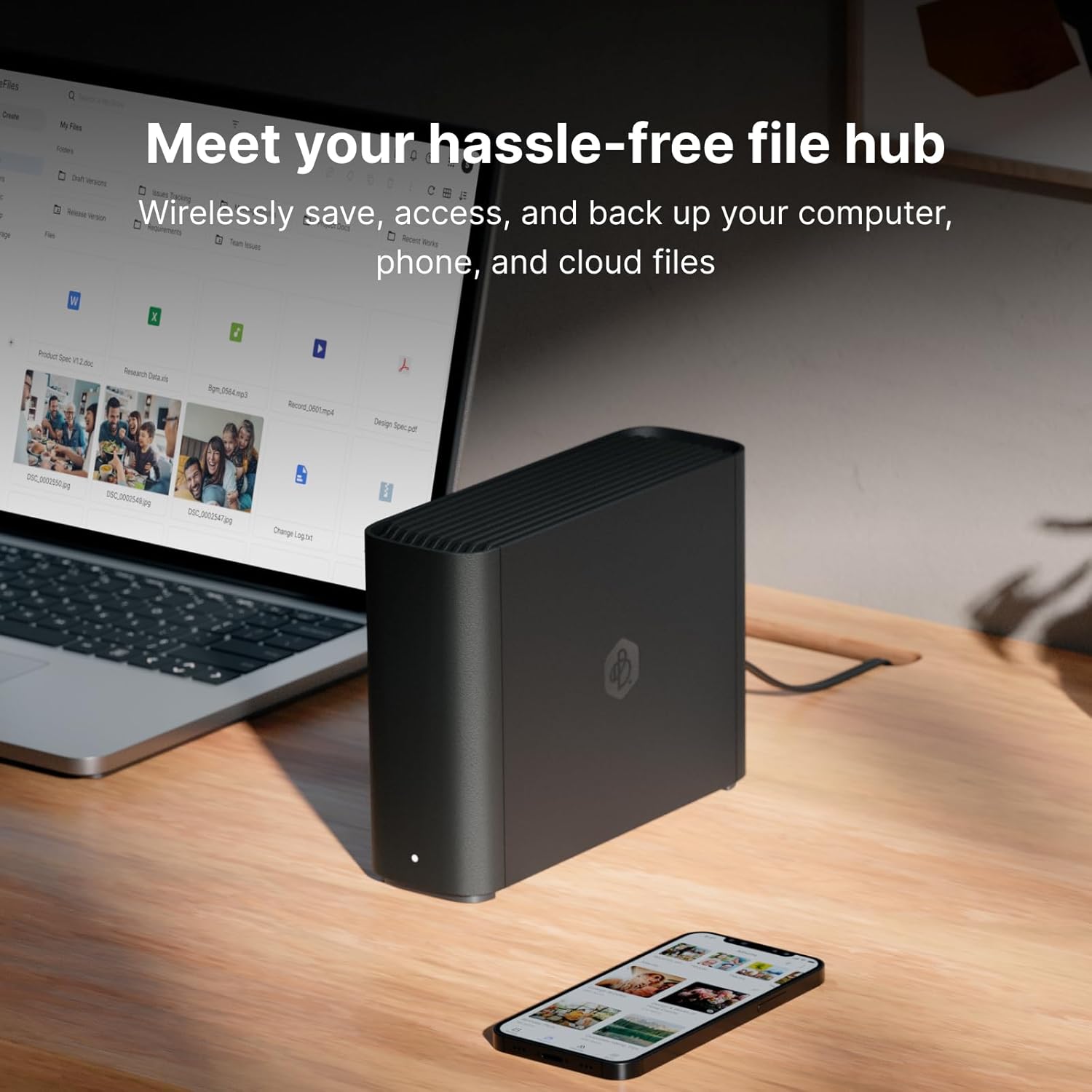
If you’ve been paying $10–$15 a month to store photos and family videos somewhere “in the cloud” — meaning on someone else’s servers, accessed over the internet — you’ve probably done the math: five years of that is $600–$900, and you still don’t own anything. A NAS (Network Attached Storage) is a small box that sits on your home network, holds one or more hard drives, and lets you access your files from any device — at home or remotely — without a recurring fee. A personal cloud device like the Synology BeeStation takes that idea and packages it with a smartphone-style setup process that hides most of the complexity. Both categories promise the same outcome: your files, your hardware, your control. What they actually deliver — especially in the first 48 hours after unboxing — is where the stories diverge. This guide surfaces the post-setup patterns that aggregate reviewer accounts document most consistently, so you can set expectations before you commit.
The Four Devices, the Four First-Day Experiences
These four devices represent the realistic range a first-time buyer considers in 2026:
- Synology BeeStation — consumer personal-cloud appliance, single 4TB drive included
- UGREEN NASync DXP2800 — prosumer 2-bay NAS, ships diskless
- Buffalo LinkStation 720D — consumer NAS, drives included, plug-and-play positioning
- Synology DS223j — entry-level 2-bay true NAS, diskless, full DSM software
The motivations buyers bring to all four are nearly identical: escape subscription fees, keep photos off third-party servers, and stream media to a TV. The experiences split sharply by device category.
BeeStation: The QR Code Promise (and the White Light Problem)
The BeeStation is designed to be set up without a computer — plug it in, download the Synology Photos app, scan a QR code, and you’re done. Reviewers at Tom’s Guide note that the onboarding process genuinely delivers on that promise for most users. If you can set up a new phone, you can set up a BeeStation.
The friction point that catches buyers off guard: the device’s initial startup takes substantially longer than the packaging implies, and during that period the status light pulses white in a pattern that looks, to most new owners, like an error or a hardware failure. Aggregated owner reviews document this confusion at high frequency — many buyers contact support or attempt a factory reset before the device finishes its initialization cycle. The fix is simply waiting (typically 15–30 minutes), but that context isn’t prominently communicated in the out-of-box materials.
The non-obvious advanced feature worth noting: One BeeStation owner documented the process of enabling SMB service on the device — SMB (Server Message Block) is the file-sharing protocol that macOS uses for Time Machine backups. Time Machine is Apple’s built-in automatic backup system. Enabling SMB on a BeeStation turns it into a Time Machine destination, which is a genuinely useful capability that the default setup flow doesn’t surface. If you’re a Mac household, this setting exists and is worth finding, but you’ll need to go looking for it.
UGREEN NASync: Fast Hands, Missing Docs
The UGREEN NASync has earned consistent praise from reviewers at TechRadar for its physical setup speed — drives slot in tool-free, the enclosure feels premium for the price tier, and the initial web interface configuration is straightforward. For a diskless NAS in this class, the hardware onboarding is genuinely competitive with Synology’s consumer line.
The gap is remote access. One owner specifically documented that reliable access to the NASync from outside the home network — from a phone on cellular, or from a work laptop — required independently installing Tailscale, a third-party VPN (Virtual Private Network) service. A VPN in this context creates an encrypted tunnel between your remote device and your home network, so your NAS behaves as if you’re sitting at home even when you’re not. Tailscale’s free tier handles this elegantly for personal use. The problem is that the UGREEN documentation doesn’t cover this path, which means buyers who assume remote access “just works” out of the box may spend significant time troubleshooting a configuration gap that has a known solution — just not a documented one.
Buffalo LinkStation: Solid Core, Broken DLNA
The Buffalo LinkStation occupies an interesting position: it’s one of the most hands-off NAS experiences available, with drives included and a setup process that requires minimal configuration. Tom’s Hardware’s long-term review notes consistently praise the hardware reliability over multi-year ownership periods. For buyers whose primary need is a simple network drive — a place to store and access files on the home network — it delivers without drama.
The warning that the same reviewer community surfaces repeatedly: the DLNA server feature has been non-functional since a firmware update that shipped several months ago, with no public fix timeline from Buffalo as of early 2026. DLNA is a protocol that allows a NAS to stream media (video, music, photos) directly to smart TVs and media players without additional software. If media streaming to a TV is a meaningful part of your use case, this is a disqualifying issue in the current firmware state. The core backup functionality is unaffected — this is exclusively a streaming problem — but it’s a significant gap for the “home media server” use case that many buyers have when they purchase this device.
DS223j: The Learning Curve That Pays Off
The Synology DS223j runs DSM (DiskStation Manager), Synology’s full NAS operating system. PCMag’s NAS roundup consistently positions it as the benchmark for software depth at the consumer-prosumer boundary. The tradeoff is transparent: the initial setup is more involved than the BeeStation, requires purchasing drives separately, and the full feature surface of DSM can feel overwhelming to first-time buyers.
What owners report in the medium term — three to six months in — is that the learning investment compounds. DSM’s package ecosystem means that the DS223j can serve simultaneously as a Time Machine destination, a Plex media server, a Surveillance Station for security cameras, and a Hyper Backup node that syncs to an offsite cloud provider. Buyers who come in with a single use case often find additional value they didn’t anticipate. The tradeoff is upfront complexity; the payoff is a platform that doesn’t impose artificial limitations as needs grow.
The Restore Question Nobody Asks at Purchase
Every conversation about NAS devices focuses on storage and setup. The question that actually determines whether your backup strategy works is simpler: have you ever restored a file from it?
Untested backups are one of the most common silent failures in home data protection — a pattern that Backblaze’s published reliability research and Ars Technica’s coverage of backup failure modes have documented repeatedly. A NAS that is configured and running is not the same as a NAS that you have confirmed can return your data when you need it. Before you rely on any of these devices for primary backup, restore a test file — ideally a folder — from scratch. Confirm the process works. Set a reminder to repeat this every three to six months.
This applies specifically to Time Machine users on the DS223j and BeeStation: confirm that macOS can see the network destination and that a test restore completes without errors before you depend on it.
By the Numbers
| Device | Setup Complexity | Remote Access OOB | DLNA Streaming | Time Machine Support |
|---|---|---|---|---|
| BeeStation | Very Low | Yes (via Synology relay) | No | Yes (SMB, manual enable) |
| UGREEN NASync | Low–Moderate | Requires Tailscale | Yes | Yes |
| Buffalo LinkStation | Very Low | Limited | Broken (firmware) | Limited |
| Synology DS223j | Moderate | Yes (QuickConnect) | Yes (via Plex pkg) | Yes (native) |
OOB = out of the box, without additional configuration.
The Decision Frame: If X, Then Y
If you are a Mac household with no networking knowledge and your primary goal is automatic photo backup with zero ongoing fees: The BeeStation’s QR-code onboarding is the right starting point. Enable SMB manually after setup if you want Time Machine integration. Budget 30 minutes of patience for the initial white-light startup cycle before assuming anything is wrong.
If you want a prosumer diskless NAS with premium hardware and you’re comfortable installing one additional free app (Tailscale) to enable remote access: The UGREEN NASync is a legitimate contender. The documentation gap on remote access is a known problem with a known solution — it just requires acknowledging upfront that the out-of-box experience doesn’t complete the picture.
If media streaming to a TV is a non-negotiable feature: Avoid the Buffalo LinkStation until Buffalo ships a firmware fix for the DLNA regression. For core backup storage only, it remains reliable. The platform’s long-term hardware track record per Tom’s Hardware’s review record is genuine — this is a firmware-specific problem, not a hardware quality issue.
If you are willing to invest two to four hours in initial setup in exchange for a platform you won’t outgrow: The Synology DS223j is the right answer. The DS223j paired with a Hyper Backup job to Backblaze B2 or Wasabi gives you a proper 3-2-1 architecture (one copy on local drives, one on the NAS, one offsite) that costs roughly $7–$10/month in cloud storage fees — a fraction of what a subscription-only strategy costs long-term.
Frequently Asked Questions
How long does the initial setup of a BeeStation or UGREEN NASync actually take? Physical setup for both is under 15 minutes. The BeeStation’s first-time initialization — the period before it’s usable — can run 20–40 minutes during which the status light pulses white. This is normal but poorly communicated. The UGREEN NASync’s software setup is similarly quick; the additional time comes if you configure Tailscale for remote access, which adds roughly 20–30 minutes for a first-time user.
Do I need technical knowledge to set up remote access from outside my home network? For the BeeStation and DS223j, remote access works via Synology’s QuickConnect relay service without any network configuration — it’s the closest thing to a “just works” experience in this category. For the UGREEN NASync, the documented path that owners report as reliable requires installing Tailscale, which is genuinely beginner-accessible but is an extra step.
Can the Synology DS223j be used as a Time Machine destination for Mac? Yes. This is a native, well-documented feature of Synology’s DSM software. Setup requires creating a shared folder and enabling Time Machine support — a process that Synology’s own knowledge base covers in detail. The BeeStation can also serve as a Time Machine destination, but it requires manually enabling SMB service, which is not surfaced in the default setup flow.
What happens to my data if the NAS device itself fails — is the data still accessible? The drives inside most NAS devices use standard formats that can be read by connecting them to another computer or a replacement NAS. However, some devices use proprietary RAID configurations or encryption that complicate drive recovery. The only strategy that guarantees access to your data regardless of device failure is maintaining an independent offsite copy — a cloud backup tier like Backblaze B2 — in addition to the local NAS. A NAS is not a backup by itself; it is one layer of a backup strategy.
Is the Buffalo LinkStation reliable enough for primary home backup storage? The hardware reliability record across long-term reviews is solid. The current DLNA firmware issue does not affect backup functionality. If your use case is file storage and backup only — not media streaming — the LinkStation’s reliability reputation holds. If streaming to a TV is important, the current firmware state is a meaningful disqualifier until Buffalo ships a fix.
What is Tailscale and do I need it for a home NAS to work remotely? Tailscale is a free (for personal use) VPN service that creates a private, encrypted network between your devices — so your phone, laptop, and home NAS behave as if they’re all on the same local network regardless of where you are. For the BeeStation and DS223j, you don’t need it — Synology’s built-in relay handles remote access. For the UGREEN NASync, owner experience suggests Tailscale is the most reliable path to consistent remote access, even though the device’s own documentation doesn’t mention it.