If you’ve ever looked up “NAS hard drive” and immediately found yourself comparing two numbers on a spec sheet—price and capacity—you’re not alone, and you’re also not getting the full picture. A NAS (Network Attached Storage) device is essentially a small box that holds multiple hard drives and connects to your home or office network, letting every device back up to one central location automatically. The drives you put inside it are the foundation of your entire backup vault. Buy the wrong ones, and you’ll pay again—in failed rebuilds, surprise replacement costs, or bloated electricity bills—long after you’ve forgotten what you paid at checkout. This guide is about the number that actually matters: what a NAS drive costs you over five years, not just the day you unbox it.
If you already know what AFR, MTBF, and RAID mean, you can skim the definitions and get straight to the math. If those acronyms are new, every one gets defined the moment it appears. Either way, you’ll finish with a clear decision framework.
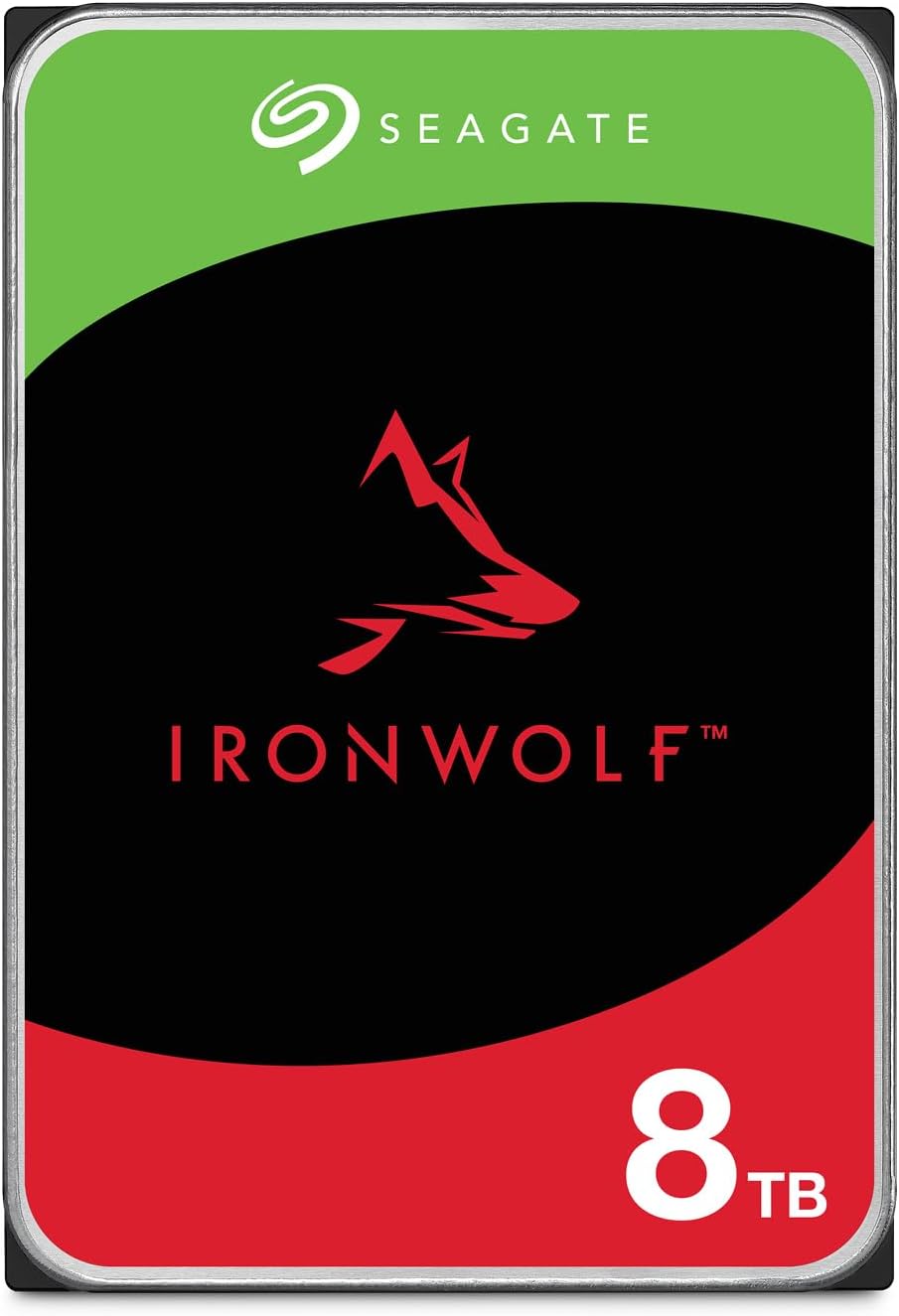
| EDITOR'S PICK[Western Digital 16TB WD Red Pro](https://www.amazon.com/dp/B08K3VVKSW?tag=greenflower20-20)… | Mid-tier[Seagate IronWolf 10TB NAS Inter](https://www.amazon.com/dp/B097C98J7H?tag=greenflower20-20)… | Budget pick[Seagate IronWolf 8TB NAS Intern](https://www.amazon.com/dp/B084ZV4DXB?tag=greenflower20-20)… | |
|---|---|---|---|
| Capacity | 16TB | 10TB | 8TB |
| Technology | CMR | CMR | — |
| Cache | 512 MB | — | 256 MB |
| Price | $654.99 | $374.99 | $299.99 |
| See on Amazon → | See on Amazon → | See on Amazon → |
Why Sticker Price Is a Trap (and How to Frame TCO Instead)
Total Cost of Ownership (TCO) is the practice of adding up every dollar a component will cost you over its useful life, not just the purchase price. For NAS drives, that calculation has four real components: acquisition cost, operating cost (power draw), failure cost (replacement plus data-risk exposure during a RAID rebuild), and egress cost if your 3-2-1 strategy routes restores through cloud storage.
Most buyers skip directly to $/TB—dollars per terabyte—as their comparison anchor. That’s a reasonable starting point, but it’s only the first term in the equation.
By the numbers — 5-year TCO snapshot at current mid-2026 pricing:
| Drive class | Acquisition (4TB, 2-bay) | Est. power/yr (2 drives) | 5-yr power cost* | 5-yr TCO est. |
|---|---|---|---|---|
| Consumer desktop (WD Blue) | ~$80 | ~17W idle | ~$12 | ~$140 |
| NAS-rated CMR (WD Red Plus) | ~$120 | ~8W idle | ~$6 | ~$150 |
| NAS-rated CMR Pro (Seagate IronWolf Pro) | ~$160 | ~9W idle | ~$6 | ~$190 |
*Based on $0.14/kWh U.S. average, 24/7 uptime. Your utility rate will shift this number meaningfully.
The gap between the budget consumer drive and the NAS-rated drive narrows sharply once power is in the equation—and collapses entirely once you factor in failure rates.
The Hidden Tax: AFR, RAID Rebuilds, and Your Data-Risk Window
AFR stands for Annualized Failure Rate—the percentage of a given drive model that manufacturers expect to fail in any given year. A drive with an AFR of 0.5% means roughly 1 in 200 of that model fails annually. That sounds low until you’re running four drives in a NAS and five years have elapsed.
Backblaze’s Hard Drive Stats Report for Q4 2025 remains one of the most rigorous public datasets on this. Across their fleet, consumer-class drives consistently show higher AFRs than purpose-built NAS drives under sustained workloads. The pattern is predictable: consumer drives are designed for intermittent desktop use, not continuous 24/7 spin cycles. When you run them in a NAS, you’re operating outside their design envelope.
Here’s where the failure cost compounds in a way most buyers don’t anticipate: the RAID rebuild window. RAID (Redundant Array of Independent Disks) is the technology most NAS enclosures use to protect against a single drive failure—it spreads data across multiple drives so that if one dies, you don’t lose everything. But the moment a drive fails, you’re running in a degraded state. You have to insert a replacement drive and wait for the array to rebuild—copying and recalculating data across the remaining drives. On a 4TB drive, that rebuild can take 12–36 hours. On an 8TB or 12TB drive, Ars Technica’s analysis of rebuild time risk notes that modern high-capacity drives can take 48+ hours to fully rebuild under real-world conditions.
During that window, if any of your remaining drives develops a read error—or fails outright—you lose data. The longer the rebuild, the larger the exposure window. NAS-rated drives carry higher specs for UFRE (Unrecoverable Read Error rate), meaning they’re less likely to throw a read error mid-rebuild. That spec difference alone is worth real money when the alternative is a corrupted array.
StorageReview’s long-term analysis of the Seagate IronWolf Pro line notes that the Pro-tier drives also carry a longer manufacturer warranty (five years vs. three on most consumer options) and include a data-recovery service credit—essentially insurance baked into the purchase price.
CMR vs. SMR: The Recording Technology Tax You Might Not See Coming
Two recording technologies dominate the current market: CMR (Conventional Magnetic Recording) and SMR (Shingled Magnetic Recording). SMR drives pack more data into the same physical space by overlapping write tracks like shingles on a roof. The tradeoff: writes to existing data require a complex rewrite of the surrounding tracks, which slows performance dramatically during sustained writes—exactly the condition a RAID rebuild creates.
Tom’s Hardware’s comparison of WD Red Plus (CMR) versus WD Red (which briefly shifted to SMR before WD relabeled the lineup) documented real-world rebuild performance that diverged sharply under NAS workloads. The SMR drive’s write performance during rebuild caused significantly longer rebuild windows—compounding the data-risk exposure described above.
The purchase rule is simple: For any NAS drive that will live in a RAID array, verify CMR before buying. Drive spec sheets list this; it’s usually labeled CMR or “traditional magnetic recording.” If the listing doesn’t specify, contact the manufacturer or check PCMag’s updated NAS drive roundup, which flags recording technology for current models.
This matters for counterfeit and gray-market risk too. Drives sold through unauthorized channels—some third-party Amazon Marketplace sellers, gray-market importers—occasionally have mislabeled specifications or are refurbished units sold as new. For NAS drives specifically, buy from authorized resellers: direct from the manufacturer, B&H Photo, Adorama, Newegg (sold and fulfilled by Newegg itself), or major retailers like Best Buy. Verify the seller before checkout.
Egress: The Restore Cost That Destroys Your 3-2-1 Math
A 3-2-1 backup strategy means three copies of your data, on two different media types, with one copy offsite. For most home and small-office setups, the NAS is your “2” (two local copies in a RAID array), and a cloud tier is your “1” (the offsite copy). The most common cloud tiers for this use case in mid-2026 are Backblaze B2 and Wasabi—both substantially cheaper than AWS S3 or Azure Blob for storage at this scale.
But here’s where many practitioners get the math wrong: they price the upload cost, not the restore cost.
Backblaze’s own blog post on restore economics lays this out plainly. B2’s egress pricing and Wasabi’s no-egress-fee structure mean very different things when you actually need to pull 4TB back down after a catastrophic local failure. Wasabi charges no egress fees at all (subject to their storage minimums). B2 charges egress above the free monthly allotment, though the rates are well below S3. If you’re storing 8TB in B2 and need to restore it all at once, that egress cost is real money that your backup budget didn’t account for.
The practitioner decision frame here: Price your restore, not your upload. Ask the cloud provider: if I needed to download everything I’m storing today, what would it cost? Build that number into your 5-year TCO. For large NAS vaults (8TB+), the egress calculus often tips toward Wasabi’s flat model.
The Restore Test Nobody Does (Until It’s Too Late)
An untested backup is not a backup. It’s an assumption.
For NAS-based vaults, a restore test means at least once per quarter: pull a sample of files from your RAID array onto a separate device and verify they open correctly. Twice per year, run a full NAS self-test (Synology’s DSM software includes this natively; most competing platforms do too). And at least annually, do a partial restore from your cloud tier—actually download a representative sample and confirm the files are intact and current.
The failure mode that kills people is silent bit rot—data that was written correctly but degraded over time on the physical platter, without triggering any error that reached the user. RAID protects against drive failure; it does not protect against data that was never written correctly in the first place. Scheduled scrubs (parity checks) run by your NAS OS catch most of this, but only if you’ve enabled them and confirmed they’re completing successfully.
Put the test on your calendar. This is not optional for anyone managing data they can’t recreate.
If X, Then Y: The Decision Rules
You’ve done the reading. Here’s how it resolves:
If you’re building a 2-bay home NAS (4–8TB total) for photos, documents, and home-office files: Start with WD Red Plus or Seagate IronWolf (non-Pro) in CMR. The 3-year warranty and lower acquisition cost are appropriate for this scale. Pair with Backblaze B2 or iDrive for the offsite leg. Total 5-year TCO at this scale runs roughly $200–$350 in drives plus $7–$12/month cloud.
If you’re building a 4-bay small-office NAS (12–20TB usable) with business-critical files: Move to Seagate IronWolf Pro or WD Red Pro. The 5-year warranty, higher MTBF (Mean Time Between Failures—the manufacturer’s estimated average operating life before failure), and lower UFRE spec are worth the premium at this capacity and criticality. Factor the data-recovery service credit into your insurance math.
If your restore window matters (i.e., downtime costs you money): Model your egress costs explicitly before committing to a cloud tier. Wasabi’s no-egress model wins for large vaults. B2 wins for smaller vaults where the storage cost gap matters more than the occasional egress event.
If you’re uncertain whether your current drives are CMR: Check the manufacturer’s spec page directly. Drive model numbers decode to recording technology on Seagate’s and WD’s support sites. Don’t guess; the rebuild risk is too asymmetric.
The drives in your NAS are not a commodity purchase. They’re the load-bearing wall of your data protection architecture. Buy to the value of what they’re protecting—not to the lowest number on the shelf.