If you’ve ever stared at an “insufficient storage” error mid-game-download, you already understand the problem. Modern console games — especially big open-world titles — routinely run 80 GB to 150 GB each, and both the Xbox Series X and PlayStation 5 ship with internal SSDs (solid-state drives, which are faster and more durable than traditional spinning hard drives) that fill up embarrassingly fast. The natural fix is an external drive. But here’s what most buyers miss: the drive you add for storage space can also function as a meaningful layer of data protection — specifically for your saved games, the irreplaceable progress that represents hundreds of hours of play. This guide is for the buyer who’s past “which one is cheapest” and into “which configuration actually makes sense for what I own.” We’ll cover the hardware options for both major platforms, the backup architecture that most console players completely skip, and the decision rules that tell you when to spend more and when the cheaper option is fine.
What You’re Actually Protecting (and What You’re Not)
Before choosing a drive, it helps to be clear about which data you can lose and which you can’t.
On both Xbox and PlayStation, your game installs — the game files themselves — are not irreplaceable. If a drive fails, you reinstall from the disc or re-download from your digital library. Annoying, but recoverable. What is irreplaceable is your save data: the 200-hour RPG playthrough, the maxed-out career mode, the completion percentage you’ll never rebuild. On PS5, save data lives on the internal SSD and syncs to PlayStation Network cloud saves (for PS Plus subscribers). On Xbox, saves use Xbox Cloud Saves, which is automatically enabled for most titles if you have Xbox Game Pass or Xbox Live — effectively functioning as a passive cloud backup layer.
This distinction matters because it determines your risk profile:
- Your game library needs storage expansion, not backup.
- Your save data needs cloud redundancy, which both platforms provide — but with caveats.
- Your screenshots, clips, and captured media exist in a middle zone: replaceable in theory, but not in practice.
Ars Technica’s piece “Why Your Game Saves Aren’t as Safe as You Think” flagged a consistent pattern: cloud save sync failures often go unnoticed until after the data is gone, particularly when players share consoles or use account-switching. The takeaway isn’t panic — it’s awareness that “automatic” doesn’t mean “tested.”
The Platform Architectures Are Very Different: Know Before You Buy
This is the decision point that trips up most buyers who own both consoles or are switching platforms.
PlayStation 5: Internal M.2 Expansion Is the Real Answer
Sony built the PS5 with an M.2 expansion slot — a spare bay inside the console that accepts a specific type of SSD (the same category professionals use in laptops and desktop PCs). This is not plug-and-play in the consumer-electronics sense: you remove a side panel, seat the drive, and run a quick format sequence. But the result is an SSD that runs at full PS5 speed, capable of playing PS5 games natively — something an external USB drive cannot do.
The catch with external USB drives on PS5: You can connect a standard external USB drive to a PS5, but it can only store and play PS4 games. PS5 games cannot run from USB external storage. They must live on the internal SSD or the M.2 expansion slot.
PCMag’s guide to PS5 SSDs (updated 2025) notes that Sony requires any M.2 drive to meet a minimum sequential read speed of 5,500 MB/s to function correctly, and recommends drives with heatsinks to manage thermal output in the enclosed bay.
By the numbers — PS5 M.2 Expansion:
| Usable internal SSD (stock) | ~667 GB |
|---|---|
| Max M.2 slot capacity (as of 2026) | Up to 4 TB |
| Minimum required read speed | 5,500 MB/s sequential |
| USB external: PS5 game playback | ❌ Not supported |
| USB external: PS4 game storage | ✅ Supported |
For most PS5 owners, the right move is a 1 TB or 2 TB M.2 NVMe SSD in the expansion slot. The WD_BLACK SN850X and Samsung 990 Pro are the models that reviewers across Digital Foundry, PCMag, and Tom’s Guide consistently name as matching or exceeding Sony’s performance requirements — and both are widely available through authorized retailers including Best Buy, B&H Photo, and Adorama.
A note on counterfeit drives: M.2 SSDs sold through third-party Amazon Marketplace sellers have been flagged in multiple consumer-electronics forums for capacity fraud — drives that report a higher capacity than they actually contain. Purchase from authorized channels only: the manufacturer’s own storefront, Best Buy, B&H, Adorama, Newegg (sold and fulfilled by Newegg directly), or major electronics chains. Never purchase storage media from unverified third-party marketplace sellers regardless of platform.
Xbox Series X/S: Two Tracks With Very Different Tradeoffs
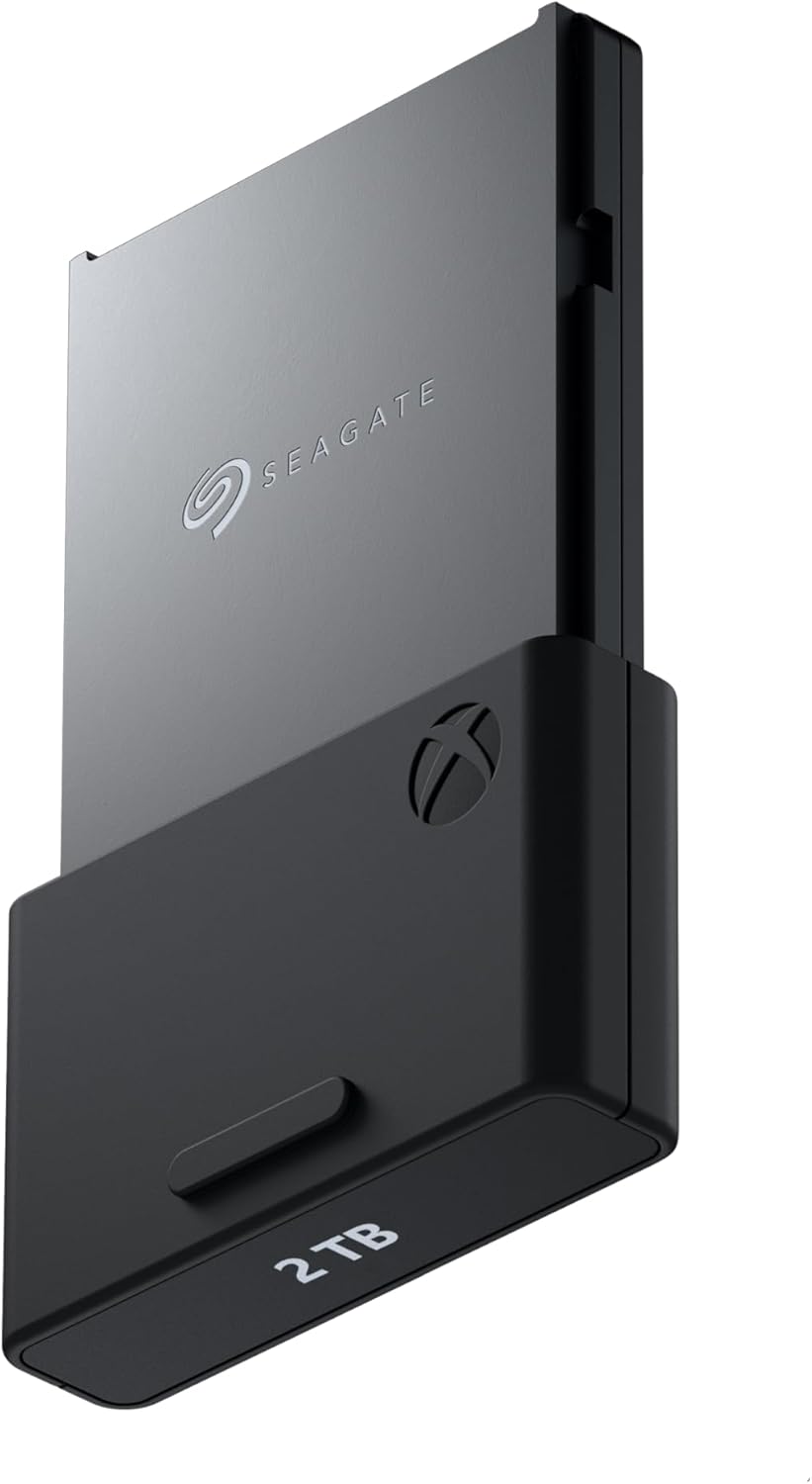
Microsoft took a different architectural approach. The Xbox Series X|S uses a proprietary expansion slot (currently Seagate’s “Storage Expansion Card”) that delivers the same NVMe speeds as the internal drive and supports native Series X|S game playback. But it also supports standard USB 3.0 external drives for game storage — you just can’t play Xbox Series X|S games directly from USB; you move them to internal or proprietary storage to launch them.
Tom’s Hardware’s review of the Seagate Storage Expansion Card noted the critical limitation: as of early 2026, only Seagate manufactures licensed Xbox expansion cards, which means no competitive pricing pressure. A 1 TB card runs approximately $130–$150; 2 TB around $200–$220. That’s a significant cost-per-terabyte premium compared to M.2 SSDs at retail.
The USB external drive play on Xbox is legitimate for a specific use case: archiving games you play infrequently. Download to internal or expansion storage to play; move the install to the external USB drive when you’re done. Re-transfer when you want to play again. A large 4 TB or 8 TB USB hard drive at $80–$120 serves as a cold-storage archive for your game library. Per Tom’s Guide’s roundup of Xbox external drives, the WD Elements Desktop and Seagate Expansion Desktop consistently top the value ranking for this archival role.
Where “Storage Expansion” Becomes a Backup Strategy
Here’s the framing shift that most console buyers never make: an external drive that stores your captured media and screenshots is functioning as a backup device if it’s the only copy.
Both Xbox and PS5 allow you to route screenshots, video captures, and clips to an external USB drive. If that drive is your only copy of that media, you have no backup — you have one copy in a different location than internal storage, which is not the same thing. Apply the 3-2-1 rule (three copies of the data, on two different media types, with one copy off-site or in the cloud) even here.
Practical architecture for console media:
- Capture to internal storage — keep recent clips accessible.
- Export to external USB drive — treat this as your local second copy.
- Periodically transfer to a computer and upload to cloud storage — Backblaze Personal Backup ($99/year, unlimited storage) covers this if you’re already backing up a home PC. Google Photos handles screenshots and clips acceptably for casual preservation. iDrive’s home plans (starting around $79.95/year for 5 TB as of mid-2026) work for mixed-media households.
This is the step that almost no one does, and it’s the step that matters when the drive fails.
On save data specifically: Validate that cloud sync is actually working. On PS5, go to Settings → Saved Data and Game/App Settings → Saved Data (PS5) → Auto-Upload, confirm it’s enabled, and spot-check that your most important titles show a recent upload timestamp. On Xbox, verify under Settings → Account → Storage that Cloud Saves is active. These checks take three minutes and eliminate the most common silent failure mode — a setting that should be on but toggled off during a firmware update or account switch. Ars Technica flagged this specific failure vector in their save-data piece, and it’s worth building into your routine every few months.
The Decision Rules: If X, Then Y
You’ve read the architecture. Here’s how to translate it into a purchase.
If you own a PS5 and primarily play PS5 games: → Buy a 1 TB or 2 TB M.2 NVMe SSD (WD_BLACK SN850X or Samsung 990 Pro, both with heatsink, from an authorized retailer). Skip the USB external drive unless you’re also archiving media or still play a large PS4 library.
If you own a PS5 and have a large PS4 backlog: → Add a 2–4 TB USB external drive for PS4 game storage alongside the M.2 expansion. This maximizes capacity across both generations without overspending on the proprietary storage slot.
If you own an Xbox Series X and play a rotating library: → One Seagate Expansion Card (1 TB minimum) for active Xbox Series X|S titles, plus a 4–8 TB USB external drive (WD Elements or Seagate Expansion Desktop) as a game archive. This is the highest-value architecture for the Xbox ecosystem and avoids overpaying for proprietary storage on infrequently played titles.
If you own an Xbox Series X and want maximum performance on a budget: → Max out the proprietary expansion card first (2 TB), use USB external only for archival. The speed difference is noticeable for games with fast-travel load sequences.
If you care about your captured media and clips: → Any configuration is fine if you add a third-copy cloud export step. Without that, you have one copy and you should call it what it is.
If you’re buying drives on Amazon: → Filter for “Sold by [manufacturer name]” or “Sold by Amazon.com” only. Do not purchase storage hardware from third-party marketplace sellers. The counterfeit-capacity problem is documented and ongoing; there are no reliable visual tells on a box.
The Honest Bottom Line
Console storage expansion is easy to treat as a commodity purchase — pick the biggest drive that fits the budget. But if you’ve spent 300 hours on a save file or built a media archive of captures you actually care about, the data-protection framing isn’t overkill. It’s just applying the same logic a photographer uses when they buy a NAS: match the protection level to the irreplaceability of what you’re protecting.
The math is straightforward. A 2 TB M.2 SSD for PS5 runs $100–$140 at retail in mid-2026 (per PCMag’s pricing data). A Seagate Expansion Card for Xbox runs $130–$200 depending on capacity. A cloud backup plan that covers exported media runs $7–$12/month. None of these numbers are significant relative to the time investment represented by the saves and media you’d lose if a drive fails and you had no second copy.
Buy the right drive for your platform. Enable the cloud sync and actually verify it’s working. Export your media captures to a second location. That’s the full architecture — and it fits in an afternoon.