You spent two years building a session — layered drums, stacked synths, a vocalist who flew in for one afternoon and will never be in that room again. The finished mix exists on your internal drive, and maybe on an external drive you bought a few years ago when it felt like enough space. Then one day it isn’t, and you’re making rushed decisions about where your work lives.
External storage, in this context, just means a drive that plugs into your computer from the outside — USB, Thunderbolt, or USB-C — and holds your files independently of your laptop or desktop’s built-in storage. For music producers and audio archivists, that definition carries serious weight: session files (the project documents your DAW, or digital audio workstation, uses to reconstruct a song), audio stems (the individual isolated tracks that make a mix re-editable), and sample libraries (sometimes hundreds of gigabytes of sounds you’ve licensed or built) all live there. Lose the drive, lose the work. This guide is about making sure that doesn’t happen — and about choosing the right hardware when you’re ready to upgrade from whatever you’re running now.
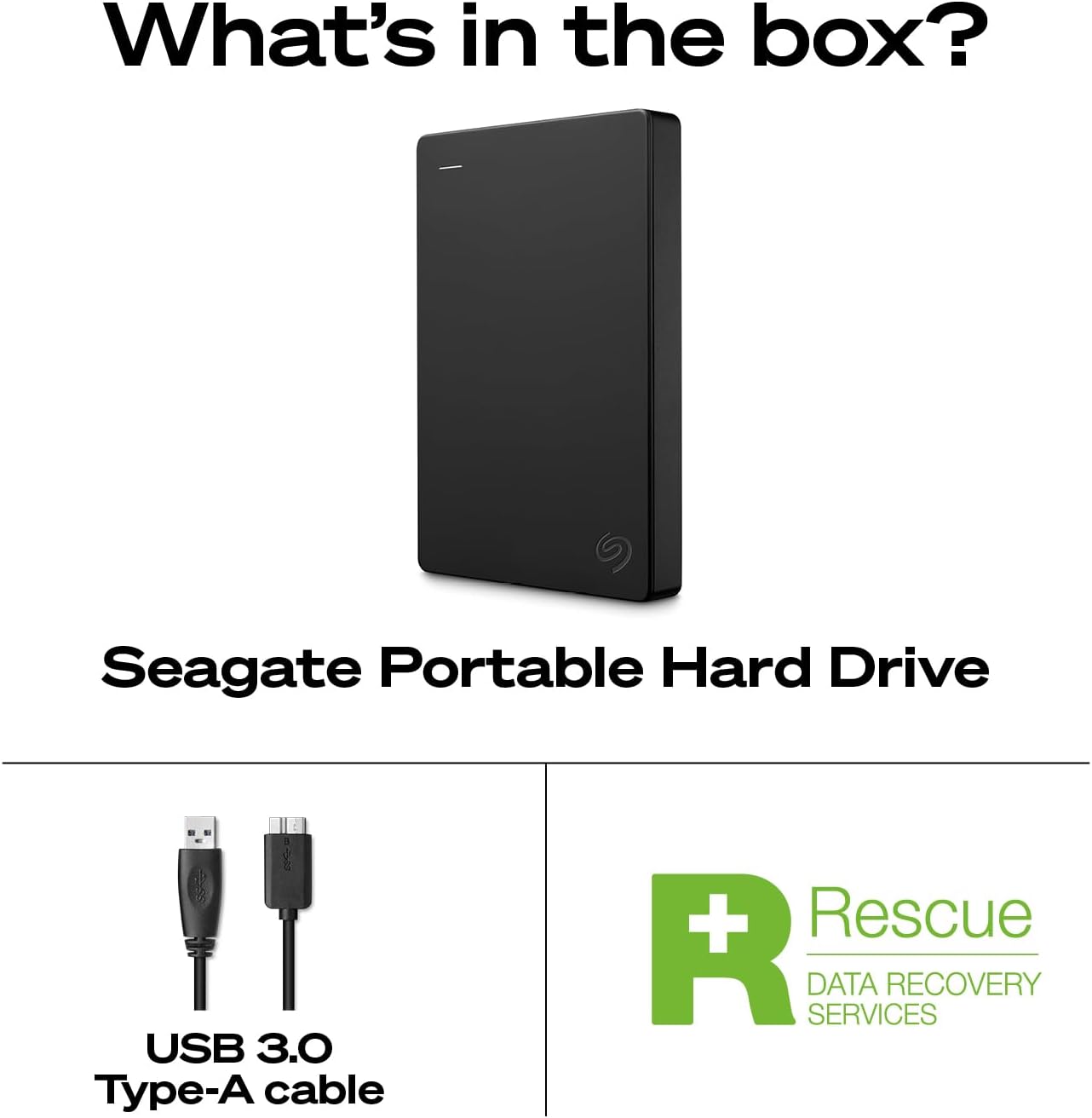
| EDITOR'S PICK[SANDISK 2TB Extreme Portable SS](https://www.amazon.com/dp/B08HN37XC1?tag=greenflower20-20)… | Mid-tier[Seagate Backup Plus Portable 5T](https://www.amazon.com/dp/B01LZP2B23?tag=greenflower20-20)… | Budget pick[Seagate Portable 2TB External H](https://www.amazon.com/dp/B07CRG94G3?tag=greenflower20-20)… | |
|---|---|---|---|
| Capacity | 2TB | 5TB | 2TB |
| Interface | USB-C, USB 3.2 Gen 2 | USB 3.0 | USB 3.0 |
| Durability | IP65 | — | — |
| Rescue Service | — | — | ✓ |
| Mac Compatible | — | ✓ | ✓ |
| Price | $278.25 | $253.54 | $127.26 |
| See on Amazon → | See on Amazon → | See on Amazon → |
The Capacity Trap: Why Producers Keep Running Out of Space
One pattern comes up repeatedly among working producers evaluating their storage: they fill a drive faster than they expected, then buy another one. A music producer reviewer who moved to the Seagate Portable line described exactly this — outgrowing a smaller external drive and choosing Seagate specifically for a combination of recognized reliability and meaningfully higher capacity headroom. That instinct is right, but the math deserves to be explicit before you buy.
By the numbers:
| Project type | Typical size per project | 1 TB holds roughly |
|---|---|---|
| Finished stereo mix (WAV, 24-bit/48kHz) | 250–500 MB | 2,000–4,000 mixes |
| Full session with stems (10–30 tracks) | 2–8 GB | 125–500 sessions |
| Large orchestral / sample-heavy session | 15–40 GB | 25–65 sessions |
| Third-party sample library (e.g., Spitfire, Native Instruments) | 50–300 GB | 3–20 libraries |
A working producer who archives finished projects and their stems — not raw multitracks, just the deliverables — can realistically accumulate 500 GB to 1 TB per year of serious output. Add sample libraries and that number can double. The practical recommendation for most working producers is to plan for at least 2 TB of dedicated archive storage and resist the impulse to buy the smallest drive that covers today’s files.
The price-per-terabyte metric is your anchor here. In mid-2026, portable HDDs (spinning-disk drives) typically land around $20–$30 per terabyte; portable SSDs (solid-state drives, which have no moving parts and are faster) run $60–$120 per terabyte depending on speed tier. That gap is real and consequential — we’ll come back to it.
HDD vs. SSD: The Honest Trade-off for Audio Work
The HDD-versus-SSD decision is not a simple “newer is better” question for this audience. It depends on what you’re doing with the drive.
Portable HDDs — like the Seagate Portable — are the dominant choice for archiving finished work you access infrequently. Reviewers across the Seagate Portable line consistently note straightforward plug-and-play setup on Windows and a one-click reformat process for Mac users (more on that below). The capacity-to-cost ratio is still hard to beat for cold storage: you can hold a multi-year archive on a 4 TB or 5 TB portable HDD for a fraction of what an equivalent SSD would cost. The trade-off is mechanical vulnerability — a dropped HDD has moving parts that can fail on impact — and slower sustained transfer speeds, typically 100–130 MB/s on USB 3.0 connections.
Portable SSDs — like the SanDisk Extreme line — close the speed gap substantially. Reviewers describe large batch transfers of RAW photo and video files (which are structurally similar to audio in their demand on read/write throughput) as taking “minutes instead of forever.” Audio producers managing large sample library transfers or backing up a full session folder mid-session will feel that difference. The SanDisk Extreme’s published sequential read speeds are rated by SanDisk at up to 1,050 MB/s (on compatible USB 3.2 Gen 2 connections), making it a credible companion for producers who want near-instant access to archives.
One SanDisk Extreme reviewer described themselves as “a maniac about backing up files,” using the SSD as a redundant copy alongside other backups — not as their only backup, but as one layer in a stack. That discipline is worth calling out because it models exactly the 3-2-1 approach every producer should be running: 3 copies of your data, on 2 different media types, with 1 copy off-site (cloud or physically separate location). An external SSD or HDD is one leg of that structure, not the whole structure.
At the more budget-conscious tier, the SanDisk Portable SSD (not to be confused with the Extreme) sits at a lower price point with lower peak speeds. Reviewers note it can download 20+ GB batches of wildlife photos in 10–15 minutes over USB — a useful real-world reference. For a producer offloading completed session folders at the end of a project, that’s functional. For someone who needs to load 50 GB of samples before a session starts, it may feel sluggish compared to the Extreme.
Mac Reformatting: Don’t Let This Catch You Off Guard
This is the most commonly mentioned friction point across reviews of the Seagate Portable line, and it’s worth demystifying clearly because it surprises studio Mac users who expect plug-and-play.
Most portable HDDs ship pre-formatted in exFAT or NTFS — file system formats (the system a drive uses to organize and find files) optimized for Windows. Macs can read NTFS drives but cannot write to them natively without third-party software. If you plug a new Seagate Portable into your Mac and try to save files, it may appear read-only.
The fix is a one-time reformat. Here’s the process:
- Back up anything already on the drive (if it’s new, skip this).
- Open Disk Utility (search for it in Spotlight — the magnifying glass in your menu bar).
- Select your external drive in the left sidebar.
- Click Erase at the top.
- Name the drive, then set the Format to ExFAT (works on both Mac and Windows) or Mac OS Extended (Journaled) if the drive will only ever touch Macs.
- Click Erase to confirm.
This takes under two minutes and the drive is ready to use. Some Seagate drives include Seagate’s own formatting tool, which walks through the same process with a simpler UI — either approach works. The key point is that this is a known, expected step, not a defect.
Running Sessions From a Portable Drive: When It Works and When It Doesn’t
Producers sometimes ask whether they can run an active DAW session — recording and playing back audio in real time — directly from a portable drive rather than their internal SSD. The answer is nuanced.
Portable HDDs: Generally not recommended for active session playback, especially with high track counts or low buffer sizes. The mechanical latency (the tiny delay as the drive’s read head moves to find data) can cause audio dropouts. For archiving and moving projects between studios, they’re fine. For live recording or playback, the risk is real.
Mid-tier portable SSDs (SanDisk Portable SSD): Workable for lower track counts and simpler sessions. Not ideal if you’re running 40+ tracks of 24-bit audio with heavy plugin loads.
High-speed portable SSDs (SanDisk Extreme, Samsung T9 Pro): Published specs and aggregated reviewer reports suggest these can handle active session recall and moderate-complexity recording when connected via USB 3.2 Gen 2 or Thunderbolt. PCMag’s portable SSD coverage notes that NVMe-based portable drives at this tier perform comparably to many internal drives for sustained sequential workloads — which is exactly what audio playback demands.
The practical rule: Use your internal drive for active recording sessions whenever possible. Reserve the portable drive for project transfer, archive, and redundant backup. If you must record directly to an external drive — common in remote recording situations — use a high-speed SSD and test it first with a short session before committing to a critical take.
Building Your Backup Architecture Around Irreplaceable Audio
The backup conversation for music producers has a specific emotional dimension that purchasing guides often understate: stems and session files from a major project are genuinely irreproducible. A hard drive failure the week before a client delivery is a professional crisis. An uninsured loss of a decade of archive work is something worse.
Backblaze’s long-term drive reliability data (published in their Hard Drive Stats series, updated through 2024) consistently shows annualized failure rates for consumer HDDs in the 1–3% range, rising with drive age. That means a single external HDD is not a backup strategy — it is a single point of failure.
The practical architecture for a working producer:
- Copy 1: Internal drive (active project)
- Copy 2: External portable drive (SSD preferred for speed; HDD acceptable for cold archive)
- Copy 3: Cloud backup — Backblaze Personal Backup ($9/month as of mid-2026, unlimited storage) or Backblaze B2 for more granular control
TechRadar’s coverage of cloud backup for creative professionals consistently surfaces Backblaze as the price-per-terabyte leader for pure backup (as opposed to sync services). The critical caveat this publication always raises: know your restore cost before you need it. Backblaze charges egress fees on B2 (though they’ve maintained free egress to Cloudflare partners). If you ever need to pull 4 TB of stems in an emergency, understand what that costs before the emergency.
And restore-test your backups. This is non-negotiable. Schedule a quarterly test where you actually pull a session from your external drive or cloud backup and verify it opens correctly in your DAW. Untested backups are the industry’s most common silent failure — the drive looks fine until the moment you need it.
Frequently Asked Questions
Do I need an SSD or will a portable HDD keep up with active DAW session recall?
For active session recall with moderate track counts (up to ~24 tracks of 24-bit/48kHz audio), a high-speed portable SSD like the SanDisk Extreme handles the load based on published sequential read specs. A portable HDD introduces mechanical latency that can cause dropouts at lower buffer sizes. For pure archiving, an HDD is cost-effective and sufficient.
How do I reformat a Windows-formatted Seagate drive for use on a Mac without losing data?
You cannot reformat without erasing. If the drive has files you need, copy them to another location first, then use Disk Utility on your Mac to erase and reformat to ExFAT or Mac OS Extended. This is a one-time setup step, not a recurring issue.
What capacity should a working music producer plan for when archiving finished projects and stems?
Plan for at least 2 TB for a working archive, and 4 TB or more if you maintain large sample libraries on the same drive. The price-per-terabyte cost of portable HDDs makes buying more capacity upfront significantly cheaper than replacing a full drive later.
Can I run a DAW session directly from a portable SSD or should it only be used for backup?
High-speed portable SSDs can handle active session playback for moderate-complexity projects. Use your internal drive for critical recording sessions when possible, and always run a test session before using any external drive for a client session.
Is the SanDisk Extreme fast enough for recording live audio tracks directly to the drive?
Based on SanDisk’s published sequential write specs (up to 1,000 MB/s) and aggregated reviewer reports covering large batch transfers, the SanDisk Extreme has the throughput headroom for live multi-track recording in most studio scenarios. That said, real-world performance depends on your USB connection quality and host controller — test first, record second.
The Decision Rule
If your sessions are irreplaceable and you’re choosing storage right now:
- If budget is the primary constraint and you’re building a cold archive: A portable HDD (4 TB or larger) gives you the best capacity per dollar. Reformat it for Mac on day one, and pair it with a cloud subscription for the third copy.
- If speed matters — sample library transfers, mid-session backups, or potential direct-from-drive playback: Step up to a portable SSD in the SanDisk Extreme tier. The per-terabyte cost is higher, but the time savings on large batch transfers compound across every session.
- In both cases: The drive is one leg of a three-copy system, not the whole system. Price the cloud restore cost before you rely on it. Test a restore before you need one.
The value of your sessions determines the right architecture. The hardware budget follows from that, not the other way around.