An external hard drive is exactly what it sounds like: a hard drive — the spinning magnetic disk that stores your files — packaged inside a slim enclosure you can connect to a computer with a USB cable and carry in your bag. Unlike a drive soldered inside a laptop, an external drive can be swapped, replicated, and stored offsite, which makes it the most popular first piece of any backup strategy. They range from pocket-sized slabs that run on bus power (meaning the USB cable powers them — no wall plug needed) to desktop units the size of a paperback novel. Most buyers have a reasonable experience. A significant minority do not — and the pattern of why things go wrong is more predictable than most product pages will tell you. This article maps that pattern, names the tradeoffs, and ends with clear decision rules so you can buy (and verify) with confidence.
| EDITOR'S PICK[Western Digital WD 5TB Elements](https://www.amazon.com/dp/B07X41PWTY?tag=greenflower20-20)… | Mid-tier[Seagate Portable 1TB External H](https://www.amazon.com/dp/B07CRG7BBH?tag=greenflower20-20)… | Budget pickORICO 2.5'' External Hard Drive… | |
|---|---|---|---|
| Capacity | 5TB | 1TB | Max 6TB |
| Interface | USB 3.2 Gen 1 | USB 3.0 | USB 3.0 |
| Compatibility | PC, Mac | PC, Mac, PS, Xbox | SATA III |
| Form factor | Portable | Portable | 2.5 inch |
| Warranty | — | 1-Year Rescue | — |
| Price | $196.99 | $109.99 | $7.20 |
| See on Amazon → | See on Amazon → | See on Amazon → |
The Cable Is Usually the First Thing to Fail
This is not a minor footnote. Across aggregated reviews for portable and desktop external drives, a recurring complaint — appearing across WD, Seagate, and third-party enclosures alike — is that the bundled USB cable fails before the drive itself does. One reviewer who identified himself as a 44-year tech industry veteran stated explicitly in his write-up that his first recommendation to any buyer is to discard the included cable immediately and replace it with a quality third-party cable. This advice surfaces independently in review threads for multiple product lines, which makes it worth treating as near-universal policy rather than an edge case.
Why does this happen? External drive manufacturers treat the cable as a commodity accessory — it passes QA at launch but is not the product they’re standing behind. The connectors are often molded cheaply, the shielding is thin, and the micro-USB or USB-C tips are the first point of mechanical stress when a drive is plugged and unplugged repeatedly. A marginal cable on a bus-powered drive doesn’t just cause read errors — it can cause the drive to disconnect mid-write, which is one of the cleaner ways to corrupt a file system.
The practical move: The moment a new drive arrives, before you format it or transfer anything, source a reputable replacement cable — USB-C to USB-A or USB-C to USB-C depending on your port config — and set the included cable aside as an emergency spare only. This costs under $15 and eliminates what reviewers consistently identify as the single most common early-ownership failure point.
DOA Drives and the Beeping Problem
Dead-on-arrival (DOA) — a drive that doesn’t work when first powered on — is statistically uncommon but not rare enough to ignore. Two failure signatures show up consistently in owner reports:
Audible beeping at power-on. A beeping external drive is almost always a mechanical distress signal. The drive’s read/write head is attempting to load (a process called “spin-up”) and failing — either because the motor is seized, the platters are damaged, or the drive is not receiving adequate power. One 1-star review of the Seagate Expansion 8TB describes exactly this: total failure within a month of purchase, accompanied by audible beeping, with the reviewer reporting data loss. PCMag’s coverage of external drive reliability notes that bus-powered drives are particularly vulnerable to spin-up failures on underpowered USB ports — a laptop’s USB-A port may not source enough current for an 8TB spinning drive under load, especially through a marginal cable.
Drives that simply don’t spin up at all. A reviewer evaluating the Seagate IronWolf Pro 12TB reported that two of four brand-new drives purchased from the same seller failed to spin up on first connection. The seller refused replacements. This scenario — where a bulk or marketplace seller absorbs the cost of returns rather than facilitating them — is a known risk with third-party fulfillment on large-format drives. StorageReview’s long-term evaluation of the IronWolf Pro line confirms the drive itself is enterprise-grade and not inherently failure-prone; the problem in cases like this is often counterfeit or gray-market stock passing through unauthorized channels.
By the numbers — early failure context:
| Drive tier | Typical infant mortality window | Backblaze-reported AFR (annual failure rate) at Year 1 |
|---|---|---|
| Consumer portable (2TB–5TB) | 0–30 days | ~1.5–2.5% |
| Consumer desktop (8TB–12TB) | 0–60 days | ~2.0–4.0% |
| NAS/enterprise (IronWolf Pro, Exos) | 0–90 days | ~0.5–1.5% |
Backblaze Hard Drive Stats 2024 Annual Report. Consumer figures are estimates extrapolated from fleet data; individual unit risk varies by reseller channel.
The consistent takeaway: buy from an authorized reseller, not a marketplace third-party. Seagate’s and WD’s websites list authorized retail partners. If you’re evaluating a marketplace listing at a suspiciously low price per terabyte, the discount is likely priced into a shorter effective warranty or a non-genuine unit.
Long-Term Reliability: The Optimistic Case
The DOA narrative gets amplified in reviews because a working drive generates no review at all. The quieter majority of owner experiences looks more like this: WD My Book purchasers reporting clean operation across nearly three decades of repurchasing the product line. Seagate Backup Plus Slim owners reporting flawless operation since 2018 with no perceptible degradation. TechRadar’s 2025 roundup of best external drives cites owner satisfaction rates for WD and Seagate portable lines as consistently high when drives are purchased through legitimate channels and survive the first 30 days.
The pattern is classic bathtub curve reliability — high infant failure risk, then a long plateau of stable operation, then eventual mechanical wear. If your drive clears the first month without issues, the realistic expectation for a quality 2.5-inch portable drive in normal use (not daily 8-hour workloads) is 3–5+ years of service.
The secondary-market opportunity. A genuinely underreported finding from owner reviews: buyers who purchase open-box or lightly used drives and immediately check SMART data — Self-Monitoring, Analysis, and Reporting Technology, the drive’s internal health log that records power-on hours, reallocated sectors, and read error rates — frequently report finding drives with clean health records and minimal runtime. A drive with 200 power-on hours and zero reallocated sectors, purchased at 40% below retail, represents real value for an informed buyer. Tools like CrystalDiskInfo (Windows) or DriveDx (macOS) read SMART data in under a minute. This is not a recommendation to default to the secondary market — it’s a decision rule: if you buy used, run SMART immediately and treat anything with reallocated sectors above zero as a return.
Warranty Realities: What You’re Actually Covered For
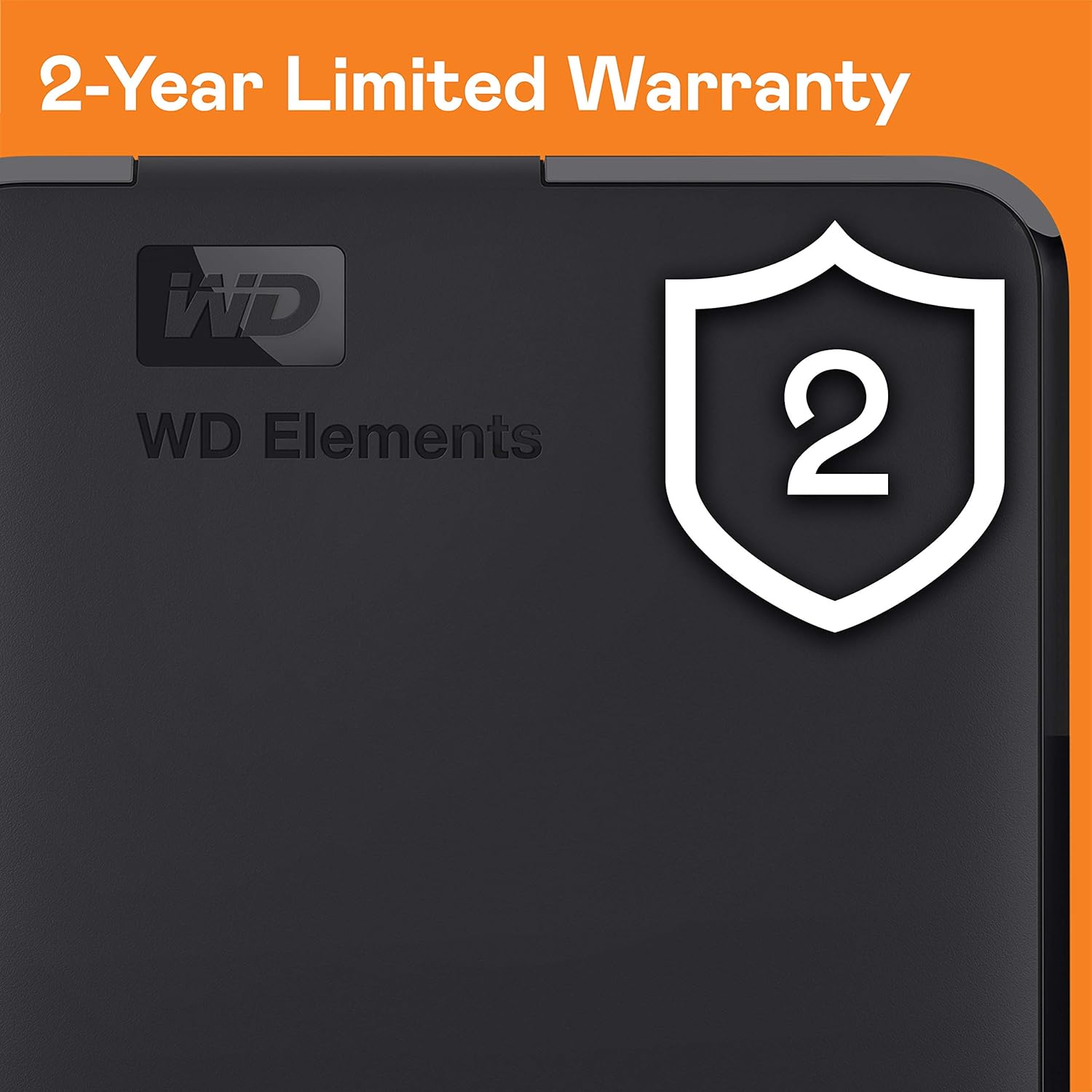
Most consumer external drives ship with a 1-year limited warranty. “Limited” is doing real work in that phrase. Standard limited warranties cover manufacturing defects under normal use — they do not cover physical damage, liquid exposure, or data recovery. This matters because the thing you’re most likely to lose in a drive failure is the data, not the hardware.
Seagate’s 1-Year Rescue Service, bundled with select Seagate consumer drives, is worth understanding specifically. It is a data recovery service, not a warranty extension. If the drive fails, Seagate’s Rescue service will attempt forensic data recovery — opening the enclosure in a cleanroom environment — and covers up to $2,000 in recovery costs per claim. Coverage is limited to the first year, applies to the original purchaser, and requires that the drive failure be reported while the service is active. Reviewers who have used it report variable experiences: successful recovery in some cases, partial recovery in others. It does not guarantee recovery — no data recovery service can, because physical platter damage may render data unrecoverable at any price.
The decision frame here: Rescue Service is a backstop, not a backup strategy. If the data on that drive exists nowhere else, you are one failure away from a recovery attempt that may fail. Treat the drive as a single point of failure and architect accordingly.
Reformatting for Mac: Less Painful Than It Sounds
Most external drives ship formatted as exFAT or NTFS — file systems (the organizational structure the OS uses to read and write files) designed for Windows. Macs can read NTFS drives natively but cannot write to them without third-party software. The standard fix is reformatting the drive to exFAT (readable and writable on both platforms) or APFS/HFS+ (Mac-native, faster on macOS, invisible to Windows by default).
Reformatting takes under five minutes in macOS Disk Utility and erases all existing data on the drive — which on a new drive is nothing. The practical steps: open Disk Utility, select the drive (not a partition), choose Erase, select your format (exFAT for cross-platform, APFS for Mac-only), and confirm. PCMag’s external drive guides recommend exFAT for any drive that will touch more than one OS, and the format handles files larger than 4GB without the limitations of the older FAT32 system.
Frequently Asked Questions
What should I do the moment a new external drive arrives? Before transferring any data: verify the drive spins up and mounts correctly, run a SMART check using a free tool (CrystalDiskInfo on Windows, DriveDx on macOS), confirm the reported capacity matches what you purchased (see below), and source a replacement USB cable if you plan to use the drive regularly. Do all of this within your retailer’s return window.
Why does my external drive beep and what does it mean? Beeping at power-on almost always indicates a spin-up failure — the drive’s motor or heads are not functioning correctly, or the drive is not receiving adequate power. Try a different USB port or a powered USB hub before assuming hardware failure. If beeping persists on a new drive, initiate a return immediately. Do not attempt to force repeated spin-up cycles; each attempt risks further mechanical damage.
Do I need to reformat a Windows-formatted drive for Mac, and how hard is it? If you need write access on macOS, yes. It takes under five minutes in Disk Utility with no technical expertise required. Format as exFAT for cross-platform use. Back up any existing data first — reformatting erases everything.
What does Seagate’s 1-Year Rescue Service actually cover? It covers the cost of a professional data recovery attempt (up to $2,000) if the drive fails within the first year. It does not guarantee successful recovery, does not extend the hardware warranty, and does not cover physical damage caused by the user. Think of it as a one-time insurance policy, not a substitute for redundant backups.
Is it worth replacing the included USB cable right away? Yes. Reviewers consistently flag the bundled cable as the weakest link in the drive’s ecosystem. A quality replacement cable is cheap insurance against connection failures, file system corruption from mid-write disconnects, and power delivery problems on bus-powered drives.
How do I verify my drive is the correct capacity after purchase? Connect the drive and check the reported capacity in your OS (right-click the drive in Windows Explorer → Properties; or Get Info on Mac). A 2TB drive will show approximately 1.81TB due to the difference between manufacturer binary and decimal terabyte definitions — this is normal and not a defect. If the reported capacity is significantly lower (e.g., a “2TB” drive showing 500GB), the drive may be counterfeit. Counterfeit drives use firmware to fake reported capacity while storing data on a much smaller real chip; they fail catastrophically when the actual storage fills. Return immediately through the original purchase channel and report to the retailer.
The Decision Rules
If a drive DOAs or beeps on arrival: Return it within the retailer window. Do not troubleshoot past a cable swap and a different USB port — the drive is almost certainly defective, and continued spin-up attempts risk making recovery harder if the data matters.
If you’re buying used: Run SMART before the return window closes. Zero reallocated sectors and under 20,000 power-on hours on a desktop drive is a reasonable threshold for confidence. Any reallocated sectors above zero on a new drive is a return.
If your data exists only on this one drive: That’s not a backup — that’s a single point of failure with a beep countdown. Pair the drive with at least one cloud tier (even a personal iDrive or Backblaze Personal plan) before you transfer anything irreplaceable.
If you’re evaluating marketplace sellers offering drives at steep $/TB discounts: Buy from an authorized reseller instead. The discount reflects risk the seller has already priced in. Your warranty and your data are worth the difference.