Your laptop is dead — won’t turn on, cracked screen, failed motherboard, or just old enough that repair isn’t worth the cost. But somewhere inside that machine, soldered to nothing, sitting on rubber grommets, is a storage drive that almost certainly still works perfectly fine. That drive contains your files. Getting them out requires one inexpensive piece of hardware called a drive enclosure — a small plastic or aluminum shell with a USB cable that turns your internal laptop drive into an external one you can plug into any working computer. This guide walks you through how that rescue works, which enclosures are worth buying, what can go wrong, and — critically — what to do with those files once you have them. If you have zero backup history, this article also covers why this moment is the perfect forcing function to build one.
| EDITOR'S PICK[CENMATE Aluminum 4 Bay Hard Dri…](https://www.amazon.com/dp/B0DD3KCGWS?tag=greenflower20-20) | Mid-tier[SABRENT 2.5 Inch SATA to USB 3.](https://www.amazon.com/dp/B011M8YACM?tag=greenflower20-20)… | Budget pickORICO 2.5'' External Hard Drive… | |
|---|---|---|---|
| Form factor | 2.5/3.5" | 2.5" | 2.5" |
| Interface | USB 3.0 + eSATA | USB 3.0 | USB 3.0 |
| RAID support | ✓ | ✗ | ✗ |
| Tool-free | — | ✓ | ✓ |
| Max capacity | 80 TB | — | 6 TB |
| Material | Aluminum | — | — |
| Price | $129.99 | $11.99 | $7.20 |
| See on Amazon → | See on Amazon → | See on Amazon → |
What You’re Actually Doing (and Why It Usually Works)
When a laptop fails, it’s rarely the drive that caused the problem. Motherboards die from heat stress. Charging ports snap. Screens crack. GPUs fail. But the 2.5-inch SATA hard drive (spinning disk) or 2.5-inch SATA SSD (solid-state drive — faster, no moving parts, same connector) tucked inside the chassis is almost always unaffected. As long as the machine didn’t fail because of storage corruption — and you’d typically know, because it would have shown symptoms like freezing, file errors, or the dreaded clicking sound — that drive is recoverable.
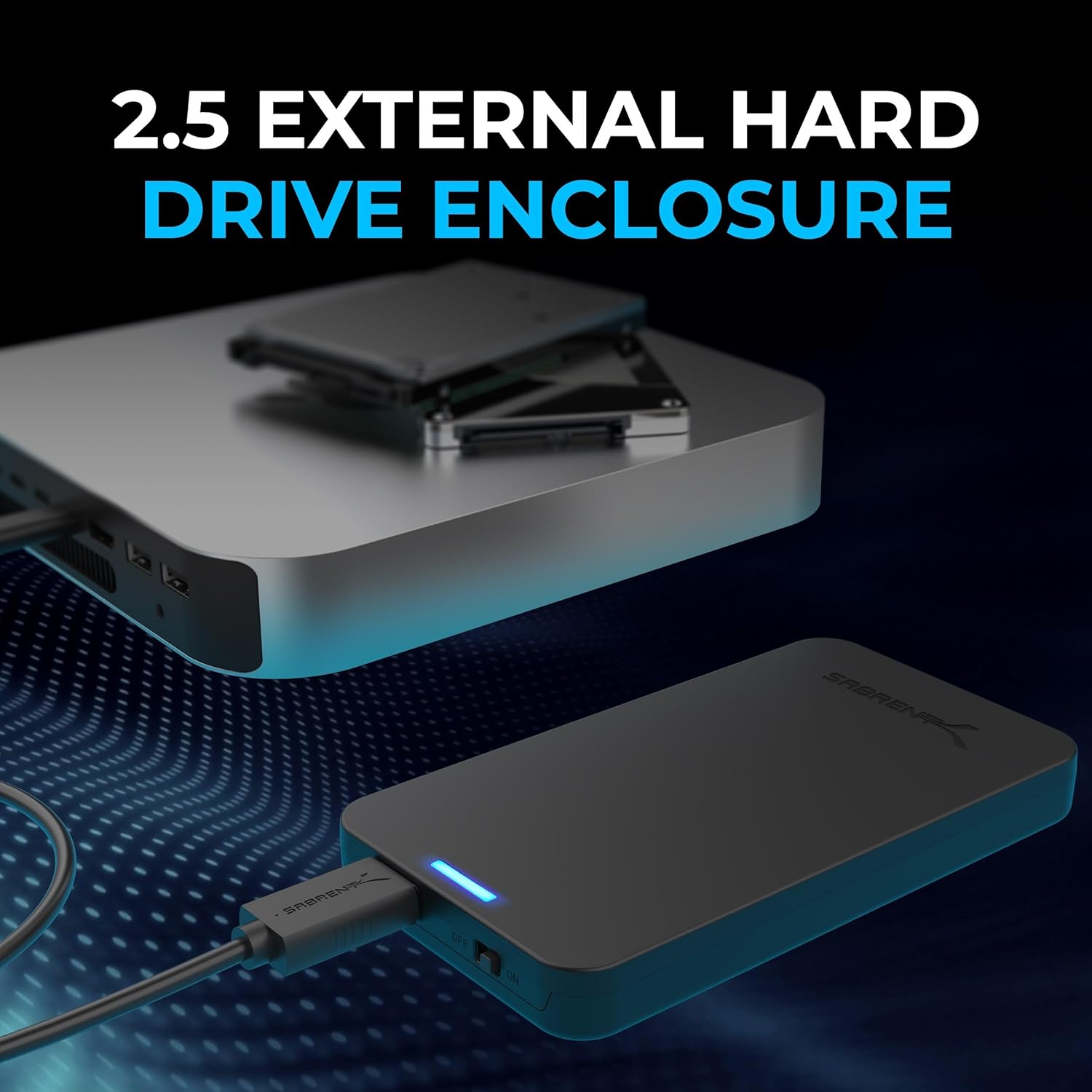
A drive enclosure (sometimes called a “USB drive enclosure” or “2.5-inch SATA enclosure”) solves exactly one problem: it gives your now-homeless internal drive a USB connection so another computer can read it. You open the enclosure, slide the drive in, connect the SATA data-and-power connector (it’s a single L-shaped plug), close the case, and plug it into a USB port. The other computer sees it exactly as it would see any external hard drive.
The process takes about five minutes if you’ve done it once. The first time, budget fifteen.
The catch: not every laptop drive fits every enclosure, and not every enclosure is built to last. Here’s what you need to know before you buy.
Matching Enclosure to Drive: The Specs That Actually Matter
SATA vs. NVMe — Get This Right First
Before you order anything, you need to know which type of drive your laptop has. There are two main families:
- 2.5-inch SATA drives — the older, more common type. These are rectangular, roughly the size of a deck of cards, with a single L-shaped connector at one end. Both spinning hard drives (HDDs) and many SSDs use this form factor. Standard 2.5-inch SATA enclosures work with these.
- M.2 NVMe drives — the newer type found in most laptops made after roughly 2017–2018. These are small rectangular sticks (about the size of a stick of gum) with a different connector entirely. They do not fit in a standard 2.5-inch SATA enclosure. NVMe drives require an M.2 NVMe enclosure, which is a separate product category.
Putting the wrong drive in the wrong enclosure doesn’t work — the connectors won’t mate. So before you buy, identify your drive. Tom’s Hardware’s guide on external enclosures recommends opening the laptop’s service manual (almost all are available as PDFs from the manufacturer) or using the model number to look up the storage spec. If your laptop is a 2015–2019 MacBook Pro, it uses a proprietary Apple NVMe connector that requires an adapter specific to that generation — standard M.2 enclosures won’t work either.
The recovery scenarios in this article — and the enclosures named below — apply specifically to 2.5-inch SATA drives, which remain the most common type pulled from consumer laptops manufactured between roughly 2008 and 2020.
The 7mm vs. 9.5mm Thickness Question
SATA laptop drives come in two thicknesses: 7mm (slimmer, found in most modern slim laptops and nearly all 2.5-inch SSDs) and 9.5mm (found in older or budget laptops, particularly spinning HDDs from pre-2015 machines). Most current enclosures are designed for 7mm drives but include a foam spacer or rubber insert to accommodate 9.5mm drives. This is a common point of buyer confusion. According to PCMag’s roundup of external drive enclosures, the best enclosures handle both thicknesses without requiring you to hunt for a separate adapter — and the products below reflect that.
The Enclosures Worth Considering
Across aggregated buyer reviews, three enclosures appear consistently in the “pulled drive from dead laptop” use case, each with a distinct positioning.
SABRENT EC-UASP — Reviewers consistently surface two things about this enclosure: reliability of the USB 3.0 connection and the inclusion of a physical power switch. That power switch detail matters more than it sounds. One SABRENT buyer explicitly describes a previous enclosure’s failed USB connector as the trigger for the switch, noting that a dedicated power button reduces the mechanical stress on the USB port itself — which extends drive life when you’re doing multi-session recovery work. For audio/video professionals doing iterative file recovery from large media drives, owners specifically call out the power switch as meaningful. The EC-UASP supports UASP (USB Attached SCSI Protocol), which is a transfer-speed protocol that can deliver faster throughput on compatible systems — relevant if you’re moving terabytes of RAW or ProRes files.
UGREEN 2.5-inch USB 3.0 Enclosure — A buyer who recovered a drive from a 2011 MacBook Pro specifically confirms two things: the enclosure accepted a drive from a machine that old without issue, and USB 3.0-to-2.0 backward compatibility worked correctly when plugged into an older port. Wirecutter’s guide on recovering data from dead computers notes that backward compatibility is frequently overlooked by buyers who assume their rescue machine will have a modern USB-A 3.0 port — it won’t always. The UGREEN’s build quality reviews are consistently positive for a product at this price point.
ORICO Clear 2.5-inch Enclosure — The transparent shell is genuinely useful: you can see the drive activity indicator and confirm the drive is seated correctly without opening the case. An ORICO buyer recovering a 500GB iMac drive called the cost “trivially low” relative to what was recovered. That framing is accurate — this is one of the least expensive paths to data recovery that doesn’t involve professional services. However, there’s a documented reliability caveat with this product that warrants clear disclosure: at least one reviewer updated a 5-star review to 1 star after the USB connection became intermittent after several months of regular use. This pattern — initial satisfaction followed by connection instability — is consistent with lower-spec USB connector tolerances. The ORICO is a strong one-time recovery bridge. It should not be your long-term storage solution.
By the Numbers
| Enclosure | Form Factor | UASP | Power Switch | Best Use Case |
|---|---|---|---|---|
| SABRENT EC-UASP | 2.5” SATA | Yes | Yes | Iterative recovery, media pros |
| UGREEN USB 3.0 | 2.5” SATA | Yes | No | One-time rescue, older host ports |
| ORICO Clear Case | 2.5” SATA | Varies by SKU | No | Single-session recovery only |
The Real Trap: Treating a Rescue Drive as a Backup
This is the part most guides skip, and it’s the part that matters most.
A drive enclosure is a rescue bridge, not a backup solution. Getting files off a dead laptop’s drive is data retrieval — it’s recovery from a situation where you were one hardware failure away from permanent loss. The files are now on a recovered drive connected by USB. You still have exactly one copy of them.
The right move, immediately after recovery, is to build forward. Ars Technica’s guide on laptop failure recommends a layered approach: copy to a second destination before you do anything else. That second destination should be either a local drive you already trust or a cloud account you set up right now. Backblaze’s annual drive stats consistently show that HDD annual failure rates range from 1% to 5% depending on model and age — and a drive pulled from a dead laptop has unknown hours on it. Do not assume it’s healthy because it spun up once.
A simple two-step rescue protocol:
- Mount the drive in the enclosure, copy everything to a known-good local destination (another external drive, or directly to your current machine’s SSD).
- Within 24 hours, push the most irreplaceable content to cloud storage. An iDrive or Backblaze Personal Backup plan at $7–$12/month is enough to establish your second offsite copy.
Once you’ve done both of those, you have the beginning of a 3-2-1 backup architecture (3 copies, 2 different media types, 1 offsite) — and the rescued drive itself is now optional redundancy rather than your only copy.
Frequently Asked Questions
Will a 2.5-inch SATA enclosure work with any laptop hard drive I pull out?
It will work with any 2.5-inch SATA drive — both spinning HDDs and SATA SSDs. It will not work with M.2 NVMe drives, which require a different enclosure, or with Apple’s proprietary SSDs from certain MacBook generations. The safest step before buying is to look up your specific laptop model’s storage specification.
What is the difference between 7mm and 9.5mm drives, and does it affect which enclosure I need?
Both are 2.5-inch SATA drives — the thickness is the only difference. Most modern enclosures support both, often with a foam spacer for the thicker variant. Check the enclosure’s product listing to confirm it lists both sizes. This is almost never a deal-breaker, but it’s worth verifying.
Can I use a rescued drive as long-term backup storage or just for one-time recovery?
You can, with caveats. A SATA enclosure with a solid USB connection (the SABRENT EC-UASP, for example) can serve as a secondary local backup if the drive’s health checks out. Run a SMART diagnostic tool (CrystalDiskInfo on Windows, DriveDx on Mac) after recovery to assess drive health before trusting it long-term. The ORICO in particular, based on buyer-reported connection instability over time, should not be your permanent home for irreplaceable data.
Do these enclosures work with both Mac and Windows?
Yes. Drive enclosures appear to the operating system as a standard USB mass storage device. The formatting of the drive (NTFS for Windows, HFS+ or APFS for Mac, exFAT for both) affects whether each OS can read the files — but the enclosure itself is OS-agnostic. If you’re moving files from a Mac drive to a Windows machine, you may need a utility like Paragon HFS+ for Windows to read an APFS- or HFS+-formatted drive.
How do I know if my old laptop has a SATA drive vs. an NVMe SSD that won’t fit a standard enclosure?
The surest method: look up the laptop’s model number and pull the manufacturer’s spec sheet or service manual. Laptops made before 2016 are overwhelmingly SATA. Laptops made after 2018 skew toward NVMe. The 2016–2018 window is mixed. If you can open the machine, SATA drives are rectangular and roughly the size of a deck of cards; NVMe M.2 drives are small sticks, usually labeled with the manufacturer name and a capacity.
The Decision Rule
Here’s the clean if/then:
- If your laptop failed due to hardware (motherboard, screen, port, battery) and the drive itself is 2.5-inch SATA — then a $15–$25 USB enclosure like the SABRENT EC-UASP or UGREEN is the fastest, cheapest path to your files. Use it to recover, then immediately build a real backup structure.
- If you’re doing iterative, multi-session recovery from a large media drive — then prioritize the SABRENT for its power switch and UASP throughput.
- If you just need a single session to pull files and never use the enclosure again — then the UGREEN or ORICO both accomplish that job, and the ORICO’s reliability concerns are irrelevant for a one-time task.
- If you discover your drive is M.2 NVMe — then stop, don’t buy a SATA enclosure, and search specifically for an M.2 NVMe enclosure matched to your drive’s key type (M-key vs. B+M-key).
The drive in your dead laptop is almost certainly fine. The barrier between those files and your working machine is thirty dollars and fifteen minutes. The barrier between recovering those files and losing them again is a backup plan you build the same afternoon.