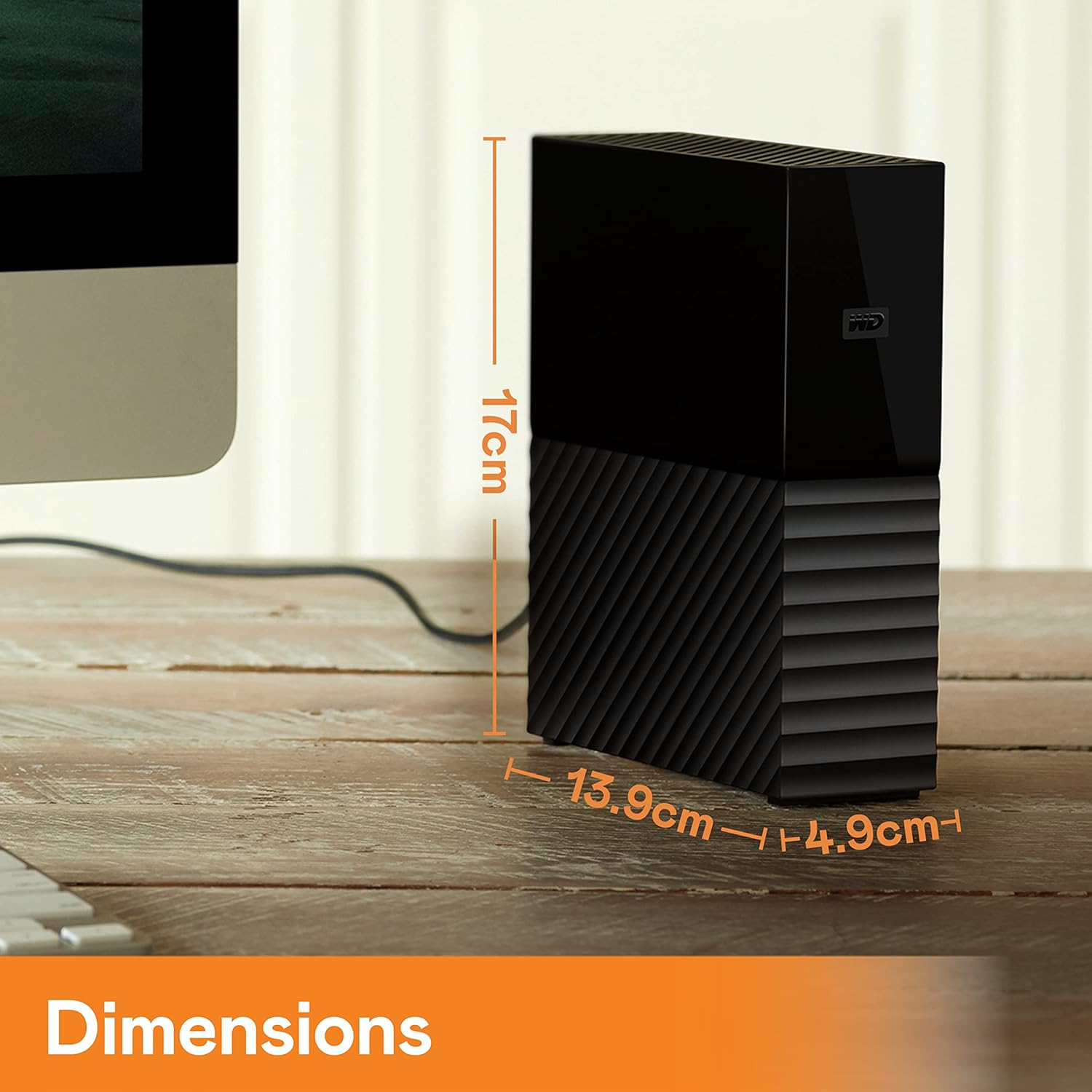
A desktop external hard drive is exactly what it sounds like: a spinning magnetic hard drive — the older, denser storage technology inside most desktop computers before solid-state drives took over — packaged inside a plastic or metal enclosure you connect to your computer via USB. It sits on your desk, draws power from a wall adapter, and gives you large amounts of storage at a price that solid-state drives (SSDs, the faster but more expensive flash-based alternative) still can’t match per terabyte. For backup purposes — making a second, third, or fourth copy of your important files in case something goes wrong with the original — desktop external drives remain the most cost-efficient anchor you can buy. This guide will show you exactly how to evaluate that value, which drives hold up over time, and where the math breaks down so you don’t make an expensive mistake.
If you’re already comfortable with the $/TB (dollars per terabyte) metric and you know the difference between SMR and CMR recording, you can skip straight to the first section. If those terms are new, don’t worry — we define them exactly where they matter.
| EDITOR'S PICKWD 16TB My Book Duo Desktop RAI… | Mid-tier[Seagate STEL8000100 Backup Plus…](https://www.amazon.com/dp/B01HD6ZLQ6?tag=greenflower20-20) | Budget pick[Western Digital WD 5TB Elements…](https://www.amazon.com/dp/B07X41PWTY?tag=greenflower20-20) | |
|---|---|---|---|
| Capacity | 16TB | 8TB | 5TB |
| Interface | USB 3.1 | — | USB 3.2 Gen 1 |
| Form Factor | Desktop | Desktop | Portable |
| RAID Support | Dual Drive | — | — |
| Password Protection | ✓ | — | — |
| Auto Backup Software | ✓ | — | — |
| Price | $819.99 | $369.99 | $196.99 |
| See on Amazon → | See on Amazon → | See on Amazon → |
The $/TB Math: Where Desktop Drives Still Win
As of mid-2026, the portable-drive market has matured to a point where you can buy a 6TB USB desktop hard drive for somewhere in the $90–$120 range from major brands. That puts the cost at roughly $15–$20 per terabyte — a benchmark that SSDs, even budget SATA-class models, can’t consistently beat below $50–$60/TB at the same tier.
By the Numbers (May 2026 market snapshot)
| Drive type | Typical capacity | Street price range | $/TB estimate |
|---|---|---|---|
| Desktop HDD (7200 RPM) | 4–8 TB | $70–$140 | $15–$20/TB |
| Desktop HDD (shucked NAS) | 8–16 TB | $140–$260 | $15–$18/TB |
| Portable SSD | 1–4 TB | $70–$220 | $55–$70/TB |
| NAS-grade HDD (retail box) | 4–12 TB | $100–$280 | $22–$28/TB |
Prices sourced from PCMag’s Best External Hard Drives 2025 roundup and Wirecutter’s updated 2025 guide; street prices vary by retailer.
The gap is real, and for backup anchors — where raw sequential write speed matters far less than cost-per-gigabyte and reliability over years — HDDs make a rational case. A photographer archiving 4TB of RAW files should not be buying a $280 portable SSD when a $90 USB desktop drive gives them the same capacity for archival writes.
But $/TB is only half the math. The other half is failure rate over time, and that’s where brand and drive class diverge sharply.
CMR vs. SMR: The Recording Technology That Changes Everything for Backup
This is the single most important technical distinction you need to make before buying, and it’s one that retailers often obscure.
CMR (Conventional Magnetic Recording) is the older, more reliable method. Data is written to non-overlapping tracks. Random writes — the kind that happen constantly when backup software is rebuilding an incremental archive or doing a RAID rebuild — are handled cleanly and quickly.
SMR (Shingled Magnetic Recording) overlaps tracks to pack more data onto a platter, which improves density but creates a bottleneck: when the drive needs to update data in the middle of the stack, it has to rewrite an entire band of tracks. For sequential writes (writing one large file once), SMR is fine. For backup software doing constant small writes, NAS RAID arrays, or any Time Machine volume that updates frequently, SMR drives routinely stall, throttle, and create failed-backup situations that owners don’t discover until they try to restore.
The Backblaze Hard Drive Stats Report from Q4 2025 remains one of the most cited public datasets on real-world drive failure rates across a fleet of tens of thousands of drives. Backblaze’s data consistently shows differentiated annualized failure rates (AFR) between drive classes — NAS-rated CMR drives from Seagate and Western Digital outperform desktop-class and consumer SMR drives over 3+ year deployment windows in their environment. Their reports are published at backblaze.com under the “Hard Drive Stats” section and are worth bookmarking for any practitioner making multi-drive purchasing decisions.
The practical rule: For any backup volume that your software touches more than once a month — Time Machine, Veeam agent local targets, Carbon Copy Cloner destinations — CMR is non-negotiable. SMR is acceptable only for cold archives you write once and rarely touch.
The manufacturer transparency problem is real: Western Digital faced significant criticism from the storage community in 2020–2021 for shipping SMR drives under model names that buyers assumed were CMR. PCMag’s coverage of that controversy, and their ongoing drive-buying guides, consistently advise readers to verify recording technology before purchasing rather than assuming it from the product tier.
The Drives Worth Trusting (and What the Evidence Shows)
The following recommendations are grounded in published spec comparisons, aggregated long-run reviewer analysis, and Backblaze’s fleet data — not firsthand testing.
Seagate Expansion Desktop
The Seagate Expansion Desktop line (4TB–8TB) sits at the intersection of lowest $/TB and widest availability. At the 8TB tier, street prices of roughly $110–$130 put it near $15/TB. Reviewers at Tom’s Hardware and Wirecutter consistently rate it as the sensible default for basic backup volumes where budget is the primary constraint. The drive inside has historically been a CMR Barracuda-class unit, though Seagate has not formally published confirmation for all SKUs — verifying recording technology via third-party teardown reports before purchase remains advisable.
Owners in long-run review threads (aggregated across tech forums covered by Wirecutter’s research process) note the drive runs cool and quiet on a desk, and USB 3.0 sequential write speeds are sufficient for overnight backup jobs. It is not a NAS drive and should not be treated as one.
Western Digital Elements Desktop
Western Digital’s Elements Desktop (4TB–12TB) is the Seagate Expansion’s closest competitor in positioning. PCMag’s 2025 roundup rates it as a reliable basic backup anchor, noting its sustained write performance and lower-than-average return rates at retail. The 8TB and 10TB versions hit a $/TB sweet spot comparable to Seagate’s equivalent tiers.
One caveat that both PCMag and Wirecutter surface: Western Digital’s consumer desktop lineup has historically included SMR in some models without prominent labeling. Cross-referencing the specific model number against Western Digital’s published SMR disclosure page (maintained on their support site following the 2020 controversy) is essential before committing to a backup deployment.
Seagate IronWolf and IronWolf Pro (for NAS-anchored backup)
If your backup architecture includes a NAS enclosure — a Synology DS923+ or a two-bay DS223, for example — the NAS-grade drive tier earns its premium. StorageReview’s analysis of the IronWolf Pro line documents vibration compensation (RV sensors), CMR recording across all capacities, and error recovery tuning designed for multi-drive arrays. The IronWolf Pro 8TB carries a five-year warranty and manufacturer-rated MTBF (mean time between failures, the statistical average lifespan rating) of 1.2 million hours.
At roughly $200–$240 for an 8TB IronWolf Pro, the $/TB climbs to $25–$30 — a legitimate premium. The question is whether your use case justifies it. For a three-drive RAID-5 array holding an irreplaceable photo archive or a Veeam local backup repository, it does. For a single-drive external plugged into a home office MacBook for Time Machine, a standard Expansion Desktop is sufficient.
The Counterfeit and Gray-Market Problem
Desktop external drives are one of the most counterfeited storage product categories on Amazon’s marketplace. The scam takes multiple forms: repackaged refurbished drives sold as new, drives with manipulated firmware reporting false capacities (a 2TB drive presenting as 8TB until you write past the first 2TB), and outright clones in genuine-looking packaging.
Wirecutter’s external drive guide and PCMag’s buying advice both explicitly recommend purchasing from authorized resellers — specifically the manufacturer’s own storefront, B&H Photo, Best Buy, Adorama, and Costco for consumer tiers, or CDW and Insight Direct for business procurement. Amazon listings fulfilled directly by Seagate or Western Digital (sold by the manufacturer, not a third-party merchant on Amazon’s platform) are generally considered safe; third-party merchants offering significant discounts on high-capacity drives should raise immediate skepticism.
The failure mode here is not just wasted money. It’s a backup that appears to succeed for months until a restore reveals that 60% of your data was written to phantom capacity and never actually recorded. The untested backup is the silent killer in any backup architecture — and a counterfeited drive compounds the risk.
Restore Testing: The Step That Turns a Drive into a Backup
A drive you haven’t restored from is not a backup. It’s a hypothesis.
This is not rhetorical. Backblaze’s own editorial content consistently emphasizes that bit rot (the gradual, invisible degradation of magnetic data over time), silent write errors, and undetected hardware faults all produce drives that appear full and healthy but fail to restore intact files. TechRadar’s storage coverage makes the same point: backup validation — actually reading back files and confirming checksums — is the differentiator between a backup strategy and a backup illusion.
Practical restore test protocol for a desktop external drive:
- After your initial backup job completes, randomly select 10–20 files across different directories and copy them to a separate location (not back to the source).
- Compare file sizes and, if your software supports it, run a checksum comparison (macOS’s
shasum, Windows’scertutil -hashfile, or your backup software’s built-in verify function). - Repeat this quarterly. Set a calendar reminder. It takes 10 minutes.
If your backup software (Time Machine, Veeam, Acronis, Carbon Copy Cloner) offers a built-in verification pass, enable it. The write-time performance hit is worth it.
Decision Rules: If X, Then Y
You’ve seen the math. Here’s how to close the decision:
If your backup volume is under 4TB, you write to it infrequently (monthly or less), and budget is the primary concern: The Seagate Expansion Desktop or WD Elements Desktop at the 4TB tier, purchased from an authorized reseller, is the right anchor. Verify it’s CMR before buying.
If you’re running backup software that writes incrementally on a daily or weekly schedule (Time Machine, Veeam agent, Acronis): CMR is mandatory. Confirm the specific SKU. A stalled SMR drive at 2AM during a backup window produces a failed backup you won’t notice until you need it.
If your backup target feeds a NAS RAID or a local Veeam repository: Move to IronWolf or IronWolf Pro. The $/TB premium ($25–$30 vs. $15–$20) is real, but so is the difference in warranty coverage, error recovery tuning, and failure rate data.
If you’re buying more than two drives for the same deployment: Cross-reference the specific model numbers against Backblaze’s published fleet failure data before committing. Backblaze’s Hard Drive Stats reports are public, free, and directly useful for this decision.
If the $/TB math feels close between tiers: It usually isn’t. A $30 spread on a single drive is noise. A 35% higher failure rate over three years on the wrong drive class is not.
Desktop external drives are not glamorous. They’re also not obsolete. At $15–$20/TB, a well-chosen CMR desktop drive — sourced from an authorized retailer, tested quarterly, and deployed as one layer of a 3-2-1 architecture — remains the most cost-efficient anchor in any backup strategy that’s protecting data worth protecting.